Introduction
That's an editing problem, and AI-assisted video editing tools have gotten much better at solving it quickly.
This guide walks through how to remove copyrighted music from a video using AI, how to do it without losing your voice or dialogue, and how the process differs across YouTube, Instagram Reels, TikTok, and Shorts. We'll also be clear about what AI editing can and can't do because removing a music track and resolving a copyright claim are related but separate things.
Why Does Copyrighted Music Trigger a Problem in Videos?
Most platforms scan uploaded videos against a database of registered audio. On YouTube, this system is called Content ID; it automatically matches your video's audio against a library submitted by rights holders. When there's a match, the outcome depends on what the rights holder has chosen: your video might get monetization redirected, restricted in certain countries, muted, or, in rarer cases, blocked entirely.
Instagram, TikTok, and Facebook run similar detection systems, though the specific rules, licensing agreements, and available remedies vary by platform. Using a song you found online, downloaded from a video, or clipped from another source even briefly, is usually enough to trigger a claim, regardless of how the clip is used.
The important nuance: a claim isn't necessarily a strike, and it doesn't always mean legal trouble. It usually means the platform has identified music it needs to account for, and it's offering you a set of editing-based options to resolve it.
Also Read: AI Video Automation Workflows
Can AI Remove Copyrighted Music from a Video?
Yes, AI-assisted audio and video editing workflows can help isolate, mute, remove, or replace unwanted music in a video, depending on how the audio was originally recorded and mixed. This is especially useful when music and speech were captured together on the same track.
Traditionally, separating a song from spoken dialogue meant either muting the entire audio track (losing your voice too) or manually re-recording narration from scratch. AI-based audio separation changes that by analyzing the frequencies and patterns that distinguish speech from music, making it possible to work with each element more independently.
It's worth being precise about what's actually happening:
- Removing audio taking out a track or segment entirely
- Separating music and speech isolating dialogue from a mixed track so background music can be reduced or swapped
- Replacing music substituting the original track with licensed or royalty-free audio
- Resolving a copyright claim a platform-specific action that depends on rights, licensing, and the platform's own claim-review process
AI accelerates the first three. The fourth depends on the platform and the actual rights involved.
How to Remove Copyrighted Music from a Video with AI
Here's a practical workflow creators and teams commonly follow:
Step 1: Keep your original file
Always start from an unedited or minimally compressed source file. Re-editing from a heavily compressed export limits your options later.
Step 2: Identify the problematic music
Check whether the flagged track is isolated (its own audio layer) or mixed directly into a single combined track with your voice or other sound. This determines how much editing work is involved.
Step 3: Remove or isolate the music
If the music is on its own layer, removing it is straightforward. If it's blended with dialogue, AI-based audio separation becomes genuinely useful, it can help distinguish the vocal elements from the music bed rather than forcing an all-or-nothing mute.
Step 4: Preserve dialogue and important audio
This step matters most for podcasts, interviews, tutorials, webinars, and business content, where the spoken content is the video's real value, not the background track.
Step 5: Replace the music if needed
Swap in something licensed for your use case: royalty-free music from the YouTube Audio Library, a platform-provided audio library track, or an originally composed piece. Replacement often works better than silence because it preserves pacing and emotional tone.
Step 6: Review the entire video
Before exporting, check voice clarity, volume balance, audio transitions, background noise, and sync between audio and picture.
Step 7: Export and check platform requirements
Removing or replacing music resolves the editing side of the problem. Whether it resolves an active claim depends on the platform's own review process.
Depending on the available editing workflow, an AI video editor such as VFX AI can help fit these steps together in one place; uploading footage, adjusting or replacing audio, and exporting a cleaned-up version for the platform you're publishing to.
Also Read: Introducing RightSafe Music
How to Remove Music from a Video but Keep the Voice
This is one of the most common things creators search for, because a standard "mute" removes everything on that track including your voice.
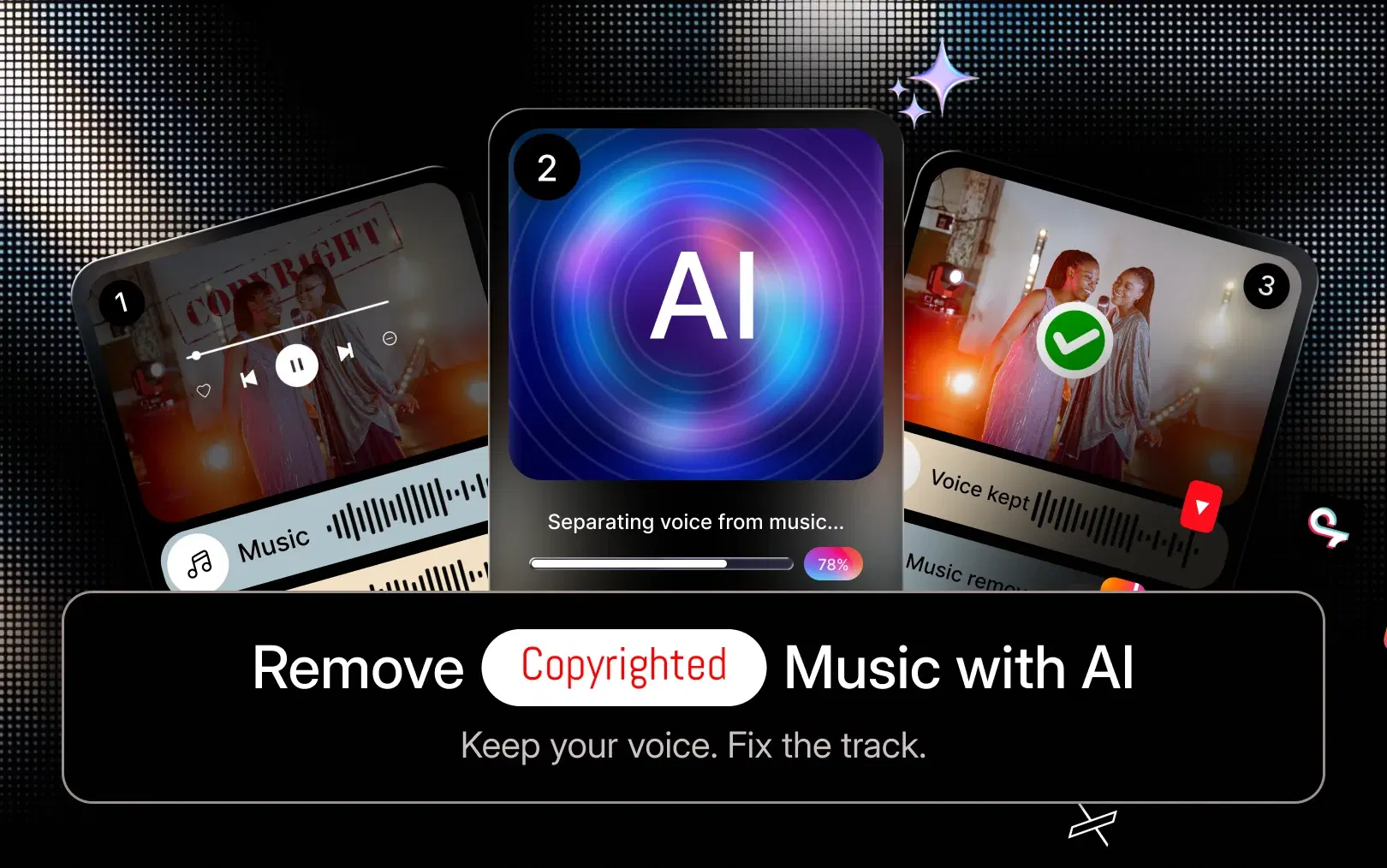
AI-based speech/music separation is different from a mute. Rather than deleting the entire audio layer, it identifies which parts of the signal are voice-driven and which are instrumental or musical, so you can reduce or remove the music while keeping spoken audio intact. This is harder when voice and music were recorded onto a single mixed track, which is common in casual or single-mic recordings but it's exactly the kind of task AI-assisted separation is designed to help with.
A few examples of where this matters:
- Podcast: keep host and guest dialogue, remove a licensed intro track that wasn't cleared for redistribution.
- Tutorial video: keep the narration, remove a distracting background music bed.
- Business or training video: keep the presenter's voice and swap out the background music for something properly licensed.
- Instagram Reel: remove an unlicensed trending audio clip while keeping your own spoken voiceover.
How to Replace Copyrighted Music Instead of Removing It
Silence isn't always the best outcome; it can make a video feel flat or unfinished, especially for anything with pacing, energy, or emotional beats. Replacing the track is usually the stronger option, using:
- Royalty-free music libraries
- Properly licensed commercial tracks
- Platform-provided audio libraries (YouTube Audio Library, Instagram's music tools, etc.)
- Original or custom-composed music
The goal is matching the tone and pacing of the original edit as closely as possible, so the swap doesn't disrupt the video's flow. This is where having editing, audio replacement, and export in one workflow rather than switching between several separate tools, saves real time, especially if you're preparing several videos or platform versions at once.
Also Read: What is an AI Lyric Video Maker?
How to Remove Copyrighted Music from YouTube Videos
If you've received a Content ID claim, YouTube typically gives you a few editing-based options directly in Studio, depending on the claim type:
- Mute the claimed song
- Replace the claimed song with an audio-library track
- Trim the claimed section out of the video
- Dispute the claim only if you genuinely hold the necessary rights, have a license, or believe the claim was made in error
Don't treat "dispute" as a default option. Disputing a claim without a legitimate basis can lead to further account consequences under YouTube's policies. Muting, replacing, or trimming are the more reliable paths when the music simply shouldn't have been there in the first place. For authoritative, up-to-date details on how claims work, YouTube's Help Center and Google Search Central are the best references, third-party guidance can be outdated.
How to Remove Copyrighted Music from Instagram Reels, TikTok, and Shorts
Short-form platforms run their own audio-matching and licensing systems, separate from YouTube's Content ID. Trending sounds, in particular, are often licensed only for use within that platform's own app, not for repurposing elsewhere.
For these formats, creators generally:
- Remove or mute the problematic audio
- Replace it with music approved for that platform or properly licensed elsewhere
- Preserve their own spoken voiceover
- Export a clean version per platform, since aspect ratio and audio requirements differ
Because short-form content usually needs to be exported in several versions (Reels, TikTok, Shorts, and sometimes a horizontal YouTube cut), doing this repeatedly by hand adds up quickly which is where an AI-assisted editor becomes more of a workflow tool than a one-off fix.
If you're looking for a faster way to edit, clean up, and repurpose videos across platforms, try VFX AI as part of your AI video editing workflow.

Why AI Video Editing Is Useful for Creators and Businesses
Copyright cleanup is one use case, but the underlying tools apply more broadly:
Creators: YouTube, Reels, Shorts, TikTok, podcasts, and personal-brand content all benefit from faster turnaround between recording and publishing.
Marketing teams: social campaigns, product videos, and ad creative often need several versions edited and exported quickly.
Businesses: training videos, webinars, interviews, and internal communications need clean, professional audio without a dedicated post-production team.
Agencies: managing multiple client videos, repurposing long-form content into short clips, and keeping a consistent editing workflow across projects.
AI Video Editor vs Traditional Manual Audio Editing
| Workflow | Traditional Editing | AI-Assisted Editing |
|---|---|---|
| Finding unwanted audio | Manual scrubbing | Faster AI-assisted workflow |
| Audio separation (music vs. voice) | Often manual/complex | AI-assisted |
| Dialogue preservation | Manual adjustments | AI-assisted |
| Music replacement | Manual searching and syncing | Faster workflow |
| Social repurposing (multiple formats) | Time-consuming | Faster |
| Scaling across many videos | Resource-heavy | More efficient |
AI editing isn't a universal upgrade for every task but for repetitive audio and repurposing work, it consistently saves time.
Best Practices When Removing Copyrighted Music
A few of best practices when removing copyrighted music are:
- Keep the original project file before editing.
- Identify exactly what triggered the claim.
- Remove only the problematic audio segment when possible, not the whole track.
- Preserve dialogue and other important sounds.
- Replace music with properly licensed or royalty-free audio.
- Review the full final mix before exporting.
- Check the platform's copyright status after publishing.
- Keep records of any music licenses you use.
- Don't assume a short clip of a song is automatically copyright-free; it usually isn't.
- Only dispute a claim if you have a legitimate, verifiable basis.
Removing Right Safe music from a video doesn't have to mean starting over. In most cases, it's an editing task, isolating or removing the problem track, preserving your voice and dialogue, and replacing the music with something properly licensed.
AI-assisted video editing can make that process considerably faster, particularly when you're separating mixed audio, preparing multiple platform versions, or handling this regularly across a channel or client roster. An AI video editor like VFX AI can fit into that broader workflow, cleaning up audio, editing, and repurposing content for the platforms you publish to.
Copyright and licensing rules vary by platform, country, and use case, and this guide isn't legal advice, when in doubt, check the platform's own policies or consult a professional.