Introduction:
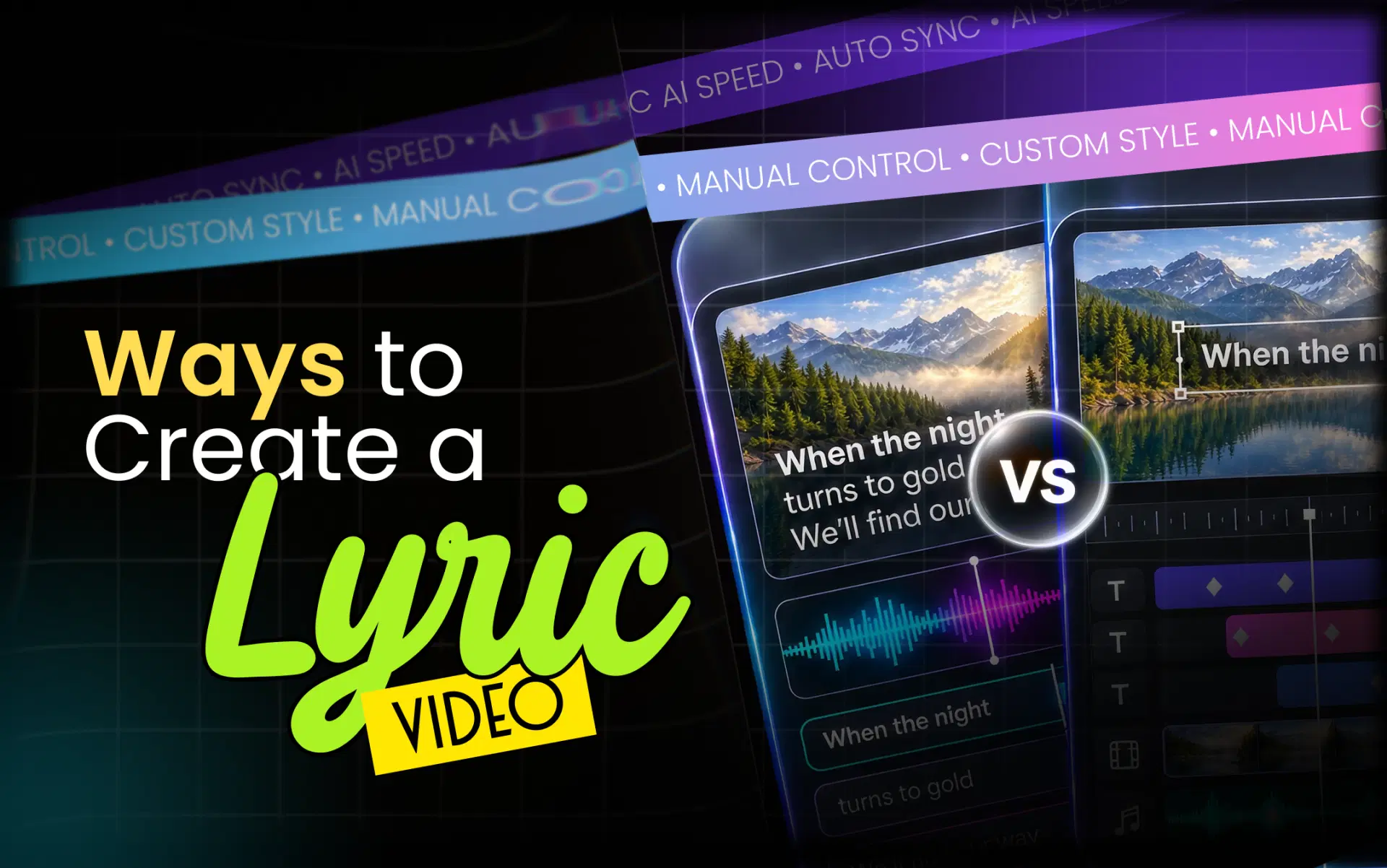
AI lyric video makers can automate tasks like syncing lyrics, animating text, and styling visuals. Manual editing gives you more direct control over timing, motion graphics, and artistic details. Neither approach is automatically better for every project. This guide explains how to create a lyric video online using both methods, compares their practical advantages and limitations, and helps you choose the right workflow for your music.
What Is a Lyric Video?
A lyric video is a music video that displays a song's lyrics on screen in synchronization with the vocals. It can use animated typography, abstract backgrounds, cinematic footage, color effects, and transitions to complement the music.
Artists often publish lyric videos alongside singles, albums, and official music videos. They are especially useful when listeners want to follow the lyrics or when an artist needs a visual asset without producing a full live-action video.
A lyric video's quality depends on three fundamentals: accurate synchronization, readable text, and visuals that support the song rather than distract from it.
How to Create a Lyric Video for YouTube Using AI
An AI-assisted workflow cuts repetitive editing and lets you start with an automatically assembled video. The exact capabilities depend on the tool you choose.
Step 1: Prepare Your Song and Lyrics
Start with the final version of your song. Use a clean audio file or a supported music link, depending on the tool. Keep an approved lyric sheet available to check spelling, punctuation, repeated choruses, ad-libs, and background vocals.
Use the final master because changes to the audio after synchronization can affect lyric timing.
Step 2: Choose an AI Lyric Video Maker
Choose software that supports the tasks your project requires. Check whether it offers automatic lyric detection, synchronization, animated text, background styling, and options to refine the output.
An AI lyric video maker may automate several stages, but features vary. Confirm the available editing and export options before committing to a full-length project.
Step 3: Import the Music and Prepare the Lyrics
Add your song or a supported link. If the tool generates lyrics automatically, compare the transcript against your approved lyrics.
Pay particular attention to names, slang, repeated phrases, fast verses, and overlapping vocals. Automatic transcription can misinterpret these sections, so correcting the text before finalizing the design can prevent unnecessary revisions.
Also Read: Step-by-step guide to making a lyric video with AI
Step 4: Synchronize the Lyrics With the Vocals
Lyric synchronization determines when each line or word appears and disappears. Some tools offer automatic synchronization, while others require manual text placement.
Listen closely to the opening words, pauses, chorus entries, and changes between verses. If the tool supports timing adjustments, correct lines that appear too early, remain on screen too long, or disappear before the vocal phrase finishes.
Do not assume that automatic synchronization will be perfect for every song.
Step 5: Select Typography, Backgrounds, and Animation
Choose a font that fits the music while remaining easy to read. Select a background that provides enough contrast, and use animation to emphasize important moments rather than every syllable.
For example, a slow acoustic song may suit gentle fades and restrained motion. An energetic electronic track may benefit from stronger movement and faster transitions.
If the tool offers automatic styling, use it as a starting point and refine the result to match the artist's visual identity.
Step 6: Review the Entire Video
Watch the video from beginning to end with the audio playing. Check spelling, synchronization, line breaks, transitions, and visual consistency.
Listen for backing vocals that may need separate treatment. Make sure long lines fit comfortably within the frame, and that important lyrics are not obscured by effects or interface overlays.
Step 7: Export for YouTube
For a conventional YouTube lyric video, a 16:9 widescreen composition is a sensible starting point. Export at 1080p or higher when your source material and software support it, and use a suitable video codec such as H.264.
YouTube recommends matching the uploaded frame rate to the source and provides detailed guidance on encoding and bitrate in its official video upload encoding recommendations.
Play the exported file before uploading it. Check the beginning and end, audio sync, image quality, and whether any unexpected borders or visual artifacts appear.
How to Create a Lyric Video Manually
Manual editing is ideal when you want detailed control over every visual element. You can use a conventional timeline-based editor without depending on automated lyric generation.
1. Create Your Project and Import the Audio
Open your video editor, create a project with your intended resolution and frame rate, and import the final song. Place the audio on the timeline and identify the start of the vocals, instrumental sections, verses, choruses, and outro.
Waveforms help you locate vocal entries and pauses, although listening remains essential.
2. Add Lyrics as Text Layers
Divide the lyric sheet into lines or shorter phrases. Create text layers and position each one over the relevant section of the audio timeline.
Keep line lengths manageable. A long sentence may need to be split across multiple cues to maintain readability and match the musical phrasing.
3. Match Each Cue to the Vocal Timing
Move the beginning and end of each text layer until it matches the sung phrase. Zoom into the timeline when necessary to make small adjustments.
For precise work, review consonant-heavy openings, sustained notes, rapid lyrics, and overlapping vocals. These areas often need more attention than slower sections.
4. Animate the Text and Build the Visuals
Apply keyframes, fades, position changes, scale adjustments, or other motion effects. Add backgrounds, footage, textures, and transitions where they serve the song.
Manual editing is particularly useful for kinetic typography, complex motion graphics, visual storytelling, and distinctive artistic direction. You can create a fully custom look, but each additional effect adds work to design, adjust, and review.
5. Review, Revise, and Export
Watch the complete timeline with sound. Correct timing, remove awkward gaps, check text placement, and ensure transitions do not interfere with readability.
Once the edit is complete, export the video using suitable YouTube settings and inspect the rendered file.
Manual editing can demand more hands-on work, especially for long songs with many lyric cues. However, the extra control can be worth it for high-profile releases where every visual detail matters.
Also Read: Free AI lyric video makers
AI Lyric Video Maker vs Manual Editing: Full Comparison
The biggest difference is how the work is distributed. AI-assisted editing can automate supported repetitive tasks, while manual editing requires the creator to construct and refine those elements directly.
| Factor | AI-Assisted Workflow | Manual Editing |
|---|---|---|
| Ease of use | Often simpler to start | Requires learning the editor |
| Learning curve | Lower for supported automated tasks | Higher for complex timeline and motion work |
| Lyric synchronization | Can generate an initial synchronized version | Timing is adjusted manually |
| Typography and animation | May offer automated styles and presets | Extensive custom animation is possible |
| Creative control | Depends on customization and editing options | Direct control over individual elements |
| Editing time | Can reduce repetitive setup | Depends on song length and visual complexity |
| Cost and accessibility | Depends on plan, usage limits, and export terms | May involve software costs and more production time |
| Revisions | Convenient when corrections are supported | Flexible, but repeated changes may require manual adjustments |
| Repeatability | Useful for recurring formats and multiple releases | Consistency depends on reusable templates and workflow |
| Best use cases | First drafts, regular releases, and efficient production | Bespoke visuals, complex animation, and precise artistic direction |
Which Approach Is Better for Your Project?
Choose AI assistance when you want to produce lyric videos regularly, minimize repetitive timing work, or create a first draft without advanced motion-design skills.
Choose manual editing when you need unusual typography, detailed animation, frame-level control, or a specific visual concept that automated styling cannot reproduce.
A hybrid workflow offers a practical middle ground: use AI for supported synchronization and styling, then refine the result manually. This approach is especially useful when you want an efficient starting point without sacrificing creative judgment.
How VFX AI Fits Into the Lyric Video Workflow
VFX AI offers a dedicated AI Lyric Video Maker alongside its broader video editing tools. Its published lyric-video workflow supports music or video links, lyric synchronization, visual styling, and choices between automated and manual styling modes. Creators can select an appropriate aspect ratio and customize the presentation to suit their project.
This makes it relevant for artists who want to explore an AI-assisted approach rather than build every lyric cue from scratch. Automated synchronization and styling can provide a starting point, while review and refinement remain important for a polished release.
For projects that need further editing, the VFX AI Video Editor provides a timeline-based editing environment with tools for trimming, transitions, captions, and other video adjustments.
Before starting, review the current product interface and available export options to ensure they meet your specific requirements. Explore VFX AI to evaluate whether its lyric-video and editing workflow suits your next music release.
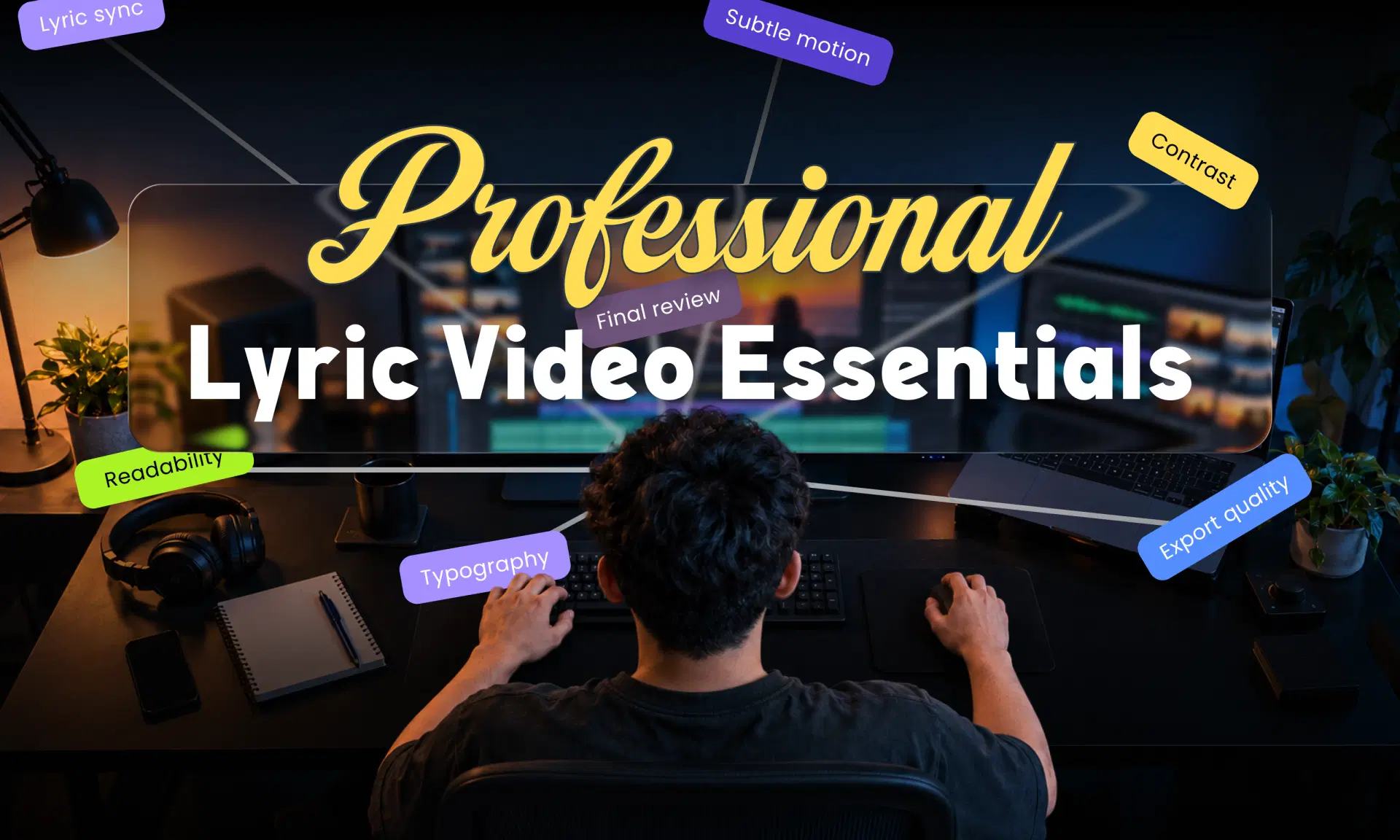
Tips for Making a Professional Lyric Video for YouTube
- Prioritize mobile readability. Use a font size that remains legible on smaller screens, and avoid placing long lines too close together.
- Maintain strong contrast. Light text on a dark background or dark text on a light background can work well when the contrast is sufficient.
- Synchronize lyrics carefully. Ensure the words appear with the vocals and disappear at appropriate points.
- Keep typography consistent. Establish a visual hierarchy for verses, choruses, and emphasized phrases.
- Avoid excessive effects. Motion should complement the song, not compete with the lyrics.
- Check the full export. Review the beginning, middle, and ending, including any instrumental breaks and repeated choruses.
- Use appropriate export settings. Check resolution, frame rate, video encoding, and audio quality before publishing.
- Confirm your rights. You may need permission for the sound recording, musical composition, lyrics, and third-party visuals. Editing a song does not grant these rights.
For official guidance, read YouTube's copyright tips and confirm that you have the necessary permissions before uploading.
Creating a lyric video for YouTube starts with choosing a workflow that matches your creative goals. AI-assisted tools can simplify synchronization and styling, making them useful for regular releases and creators who want a more accessible starting point. Manual editing remains valuable for custom animation, detailed timing, and distinctive visual direction.
For many creators, a hybrid approach offers a useful balance: automate repetitive tasks where possible, then review and refine the result before publishing.
If you want to explore that workflow, visit VFX AI's Lyric Video Maker and assess its current capabilities against your project's needs.