Introduction:
It happens more often than you'd think. The track came from a "no copyright" playlist, a trending sound saved for a Reel, or a temp track that was only meant for the rough cut. Now the video risks lost monetization on YouTube, muted audio on Instagram or TikTok, or a client deliverable you can't sign off on.
This guide walks through the fix step by step: why your visual edit can stay untouched, how to keep your voice when music and dialogue are mixed, how VFX AI RightSafe Music handles the swap, and what to do about a claim on a video that's already live.
Why You Don't Need to Re-Edit Your Entire Video to Replace Copyrighted Music
Video and audio live on separate layers. Your cuts, transitions, effects, captions, and on-screen text are tied to the picture, not to the song underneath it.
Manual replacement is slow because of everything around the swap: finding a fitting track, trimming it, matching beats to cuts, and rebalancing dialogue. And in an exported MP4, the music is baked into the mix.
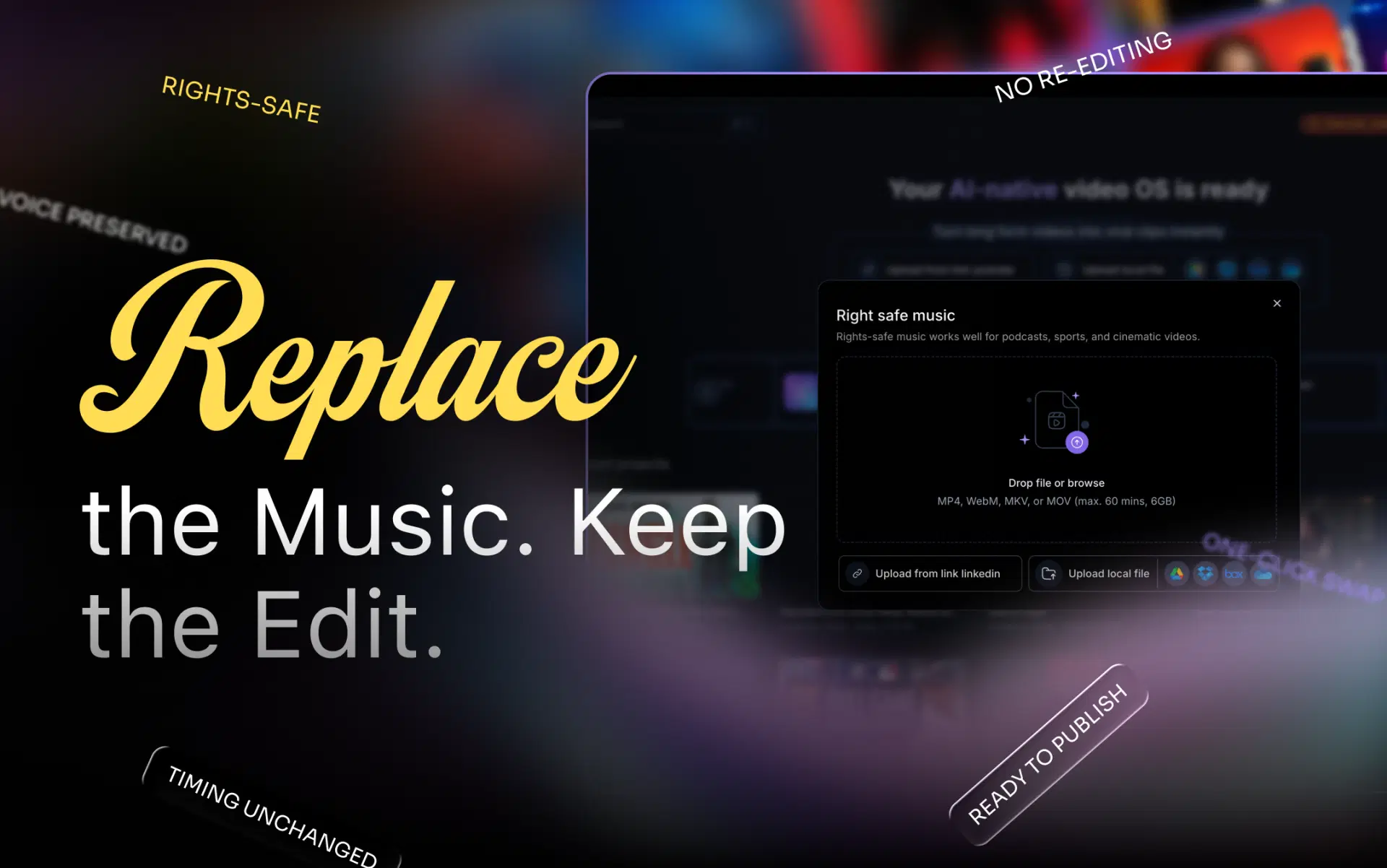
AI-assisted music replacement works on that finished file. It separates the music from everything else and fits a replacement to the existing length and pacing, so your cuts, captions, and transitions don't move.
Can You Replace Copyrighted Music Without Losing Your Voice?
Often, yes. Whether it's easy depends on how your audio is stored.
Separate audio tracks vs. mixed audio
If the music sits on its own track in your project, mute it and your narration is untouched. In a final export, music, voice, and effects share one mix, so muting it mutes everything.
How AI audio separation helps
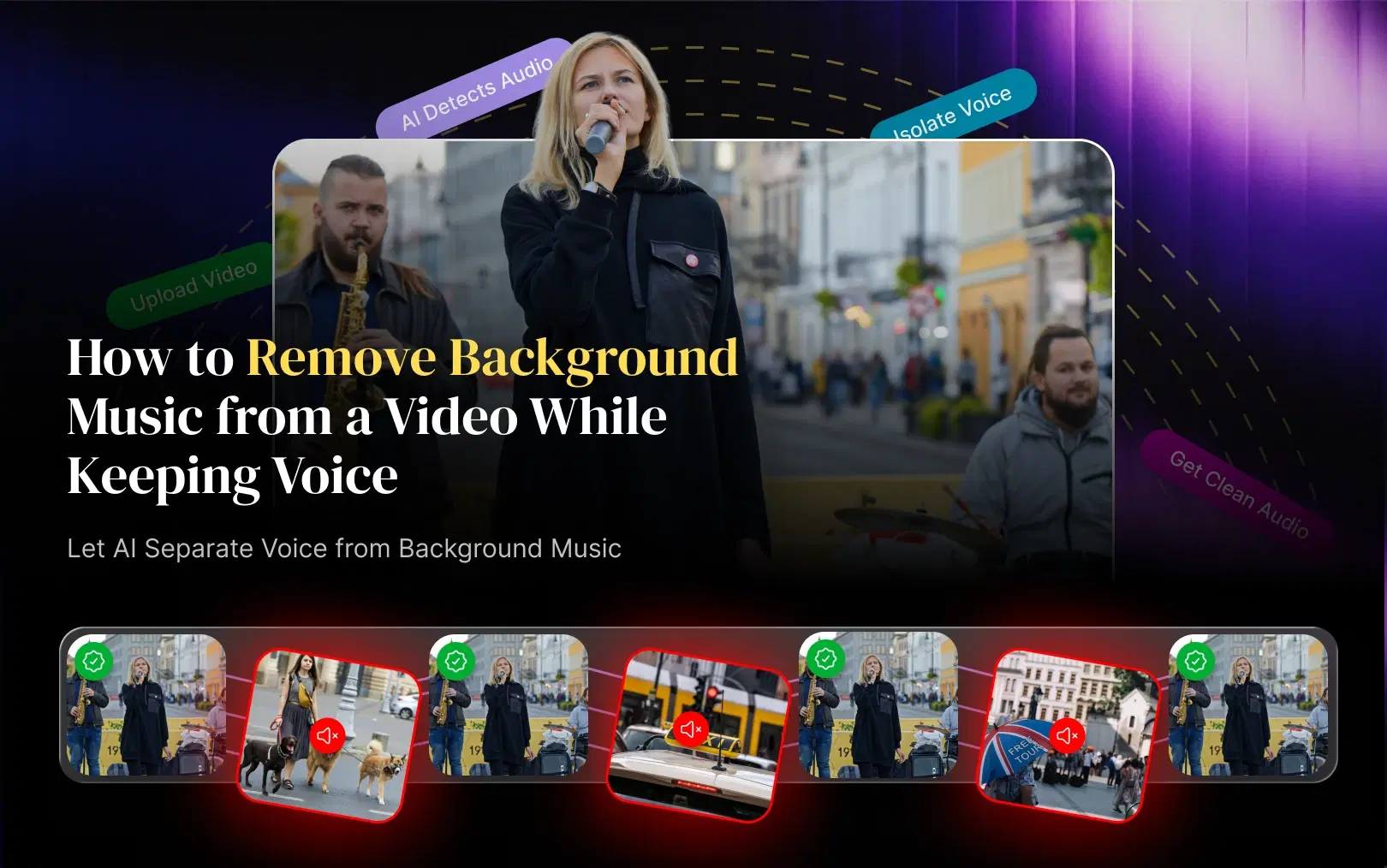
An AI music remover analyzes the mixed signal, separates speech from music, and rebuilds them as separate layers. That's how you remove music from a video but keep the voice without the original project.
Where it struggles
Results depend on the source. Loud music under quiet speech, sung lyrics over dialogue, and echoey rooms can leave a metallic-sounding voice, faint music bleed, or clipped word endings. Ambient sound may disappear with the music.
Preview on headphones where the music was loudest. For more, see how to remove background music while keeping your voice.
How to Replace Copyrighted Music in a Video Without Re-Editing Everything
This workflow applies to YouTube videos, Reels, TikToks, podcast clips, and client product demos alike.
- Identify the copyrighted music. Note the track and its timestamps; YouTube Studio lists claimed segments for flagged uploads.
- Keep your original video file. Work on a copy, and keep the project file if you have it.
- Choose the right workflow. Music on its own layer can simply be deleted. Music mixed with your voice needs AI separation first. A video already live with a YouTube claim needs YouTube Studio's tools.
- Remove or replace the existing music. Swap in the new track, or leave the music out.
- Preserve dialogue, timing, and sound effects. Make sure the new track covers the full length of the old one, sits below speech, and doesn't bury important sound effects.
- Preview the updated video. Watch it end to end on headphones and a phone speaker, especially where music starts, stops, or meets a hard cut.
- Export and check the final result. Match the original resolution and frame rate, and file the new track's license with the project.
How to Replace Copyrighted Music Using VFX AI RightSafe Music
The AI video editor by VFX AI includes RightSafe Music, a workflow for exactly this situation: the edit is done, but the soundtrack has to go. For background, see our introduction to AI copyright-safe music replacement.
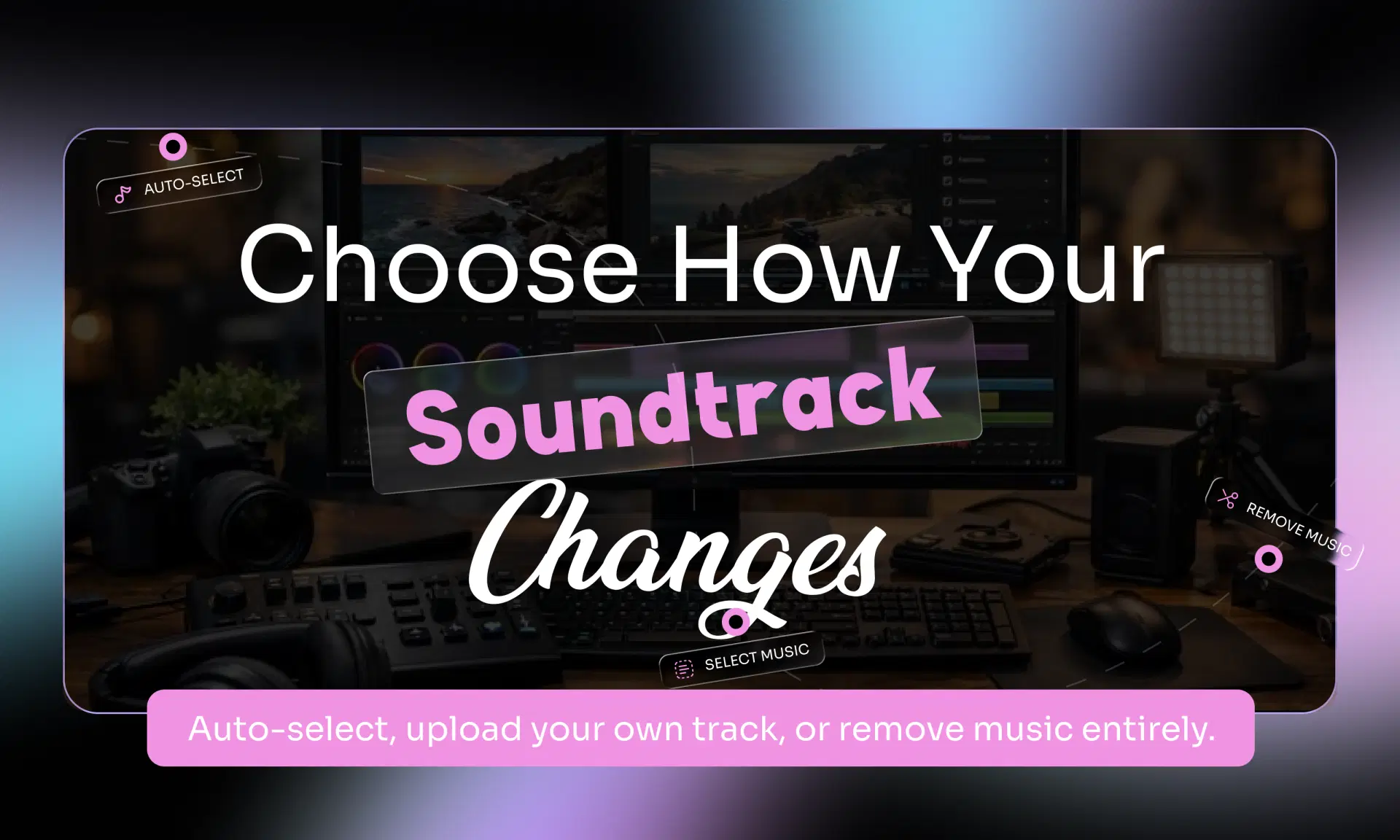
You can replace the music or remove it.
Replace Music: Auto-Select Music
The AI picks a suitable replacement based on your video's pacing, energy, and style, which saves you from auditioning dozens of library tracks.
Mood matching matters: a high-energy track under a calm tutorial feels wrong, and a slow bed under a beat-cut montage kills its momentum.
Replace Music: Select Music
Upload a track from your computer or drive, useful when you already have a licensed replacement such as brand music. You still need to verify its license.
Remove Music
Or remove the background music entirely. This suits interviews, tutorials, podcasts, and other voice-led content.
The RightSafe Music workflow
- Upload or bring your video into VFX AI.
- Open the RightSafe Music workflow.
- Select Replace Music.
- Choose Auto-Select Music or Select Music.
- Let VFX AI process the video.
- Review the output in the RightSafe Editor.
- Fine-tune the result and export.
RightSafe Music cuts the manual work, but it doesn't guarantee a video will never be claimed or replace checking the license of the music you publish. See the RightSafe Music tool page.
How to Fix a YouTube Copyright Music Claim
YouTube's Content ID matches uploads against files supplied by rights holders. On a match, the rights holder can monetise your video or have it muted or blocked in some regions. A claim isn't a copyright strike, which follows a formal takedown request; see YouTube's copyright policies.
For a live video, YouTube Studio offers three ways to remove copyright-claimed content:
- Trim out segment: cut the claimed section from the video.
- Replace song: swap claimed audio for a track from the YouTube Audio Library.
- Erase song: mute only the claimed song, keeping dialogue and effects. It can fail on hard-to-remove songs; muting all sound in those segments is the fallback.
The claim is released only once all claimed content is gone. Saved edits can't be reverted, so download a copy first.
Your original file and your live video are separate
Editing your original or downloaded file in VFX AI does not change the video already on YouTube and does not clear an existing claim. Fix the live video with YouTube's claim tools, or upload the corrected file as a new video with a new URL and zero views.
When to dispute instead
Dispute only with a real basis: a valid license, written permission, ownership of the music, or a genuine copyright exception. Crediting the artist isn't one, and a baseless dispute can escalate.
How to Choose Copyright-Safe Music for Videos
Copyright-safe music is music you have the right to use for this specific video, on every platform you'll publish to. The license decides that, not the label.
| Source | What it means | What to check |
|---|---|---|
| Royalty-free music | No ongoing royalties under the license | Commercial use, platforms, client work |
| Licensed commercial music | Paid rights for a defined use | Term, territory, ad usage |
| Original or commissioned music | You own it or hold written rights | The agreement itself |
| Platform libraries | Cleared inside one platform | Whether reuse elsewhere is allowed |
Royalty-free does not mean copyright-free; it describes a payment model. Check what the license allows for monetized videos, paid ads, and client work.
Music from Instagram's or TikTok's in-app library is generally cleared only inside that app, so copyright-safe music for Instagram Reels or TikTok isn't automatically safe on YouTube.
Our full guide to copyright-safe music for videos includes a 10-point license checklist.
Common Mistakes to Avoid When Replacing Copyrighted Music
- Assuming royalty-free means copyright-free. Check what the license actually covers.
- Muting everything and losing dialogue. On a mixed track, muting removes your voice too. Separate the audio first.
- Skipping the license check. "No copyright" in a playlist title isn't a license.
- Ignoring audio transitions. Abrupt starts and mid-phrase endings sound like mistakes. Add fades.
- Choosing music that fights the video. Match the original mood and tempo.
- Assuming a new export clears an old claim. Fixing your file doesn't touch the video already on YouTube.
For prevention before you publish, see how to avoid music copyright claims on YouTube.
A copyrighted track doesn't mean your edit is lost. Once you know how to replace copyrighted music in a video, the fix is contained: separate the music from your voice, swap in a licensed track, preview, and export. For a video already live on YouTube, finish the job with YouTube Studio's claim tools.
VFX AI RightSafe Music lets you replace or remove background music and review the result in the RightSafe Editor, inside the same AI video editor you use for captions, reframing, and publishing. Try it on your next flagged video.