Introduction
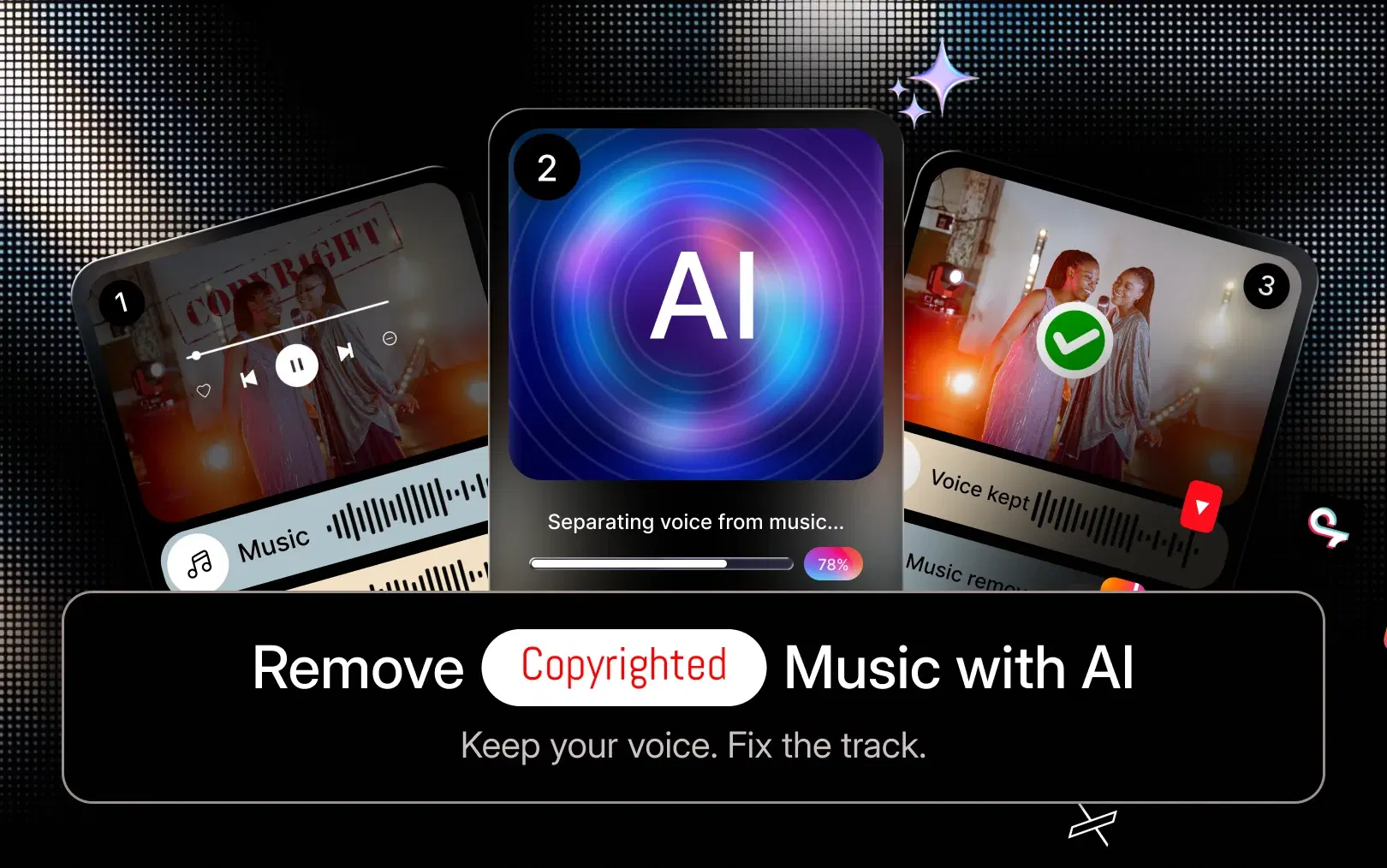
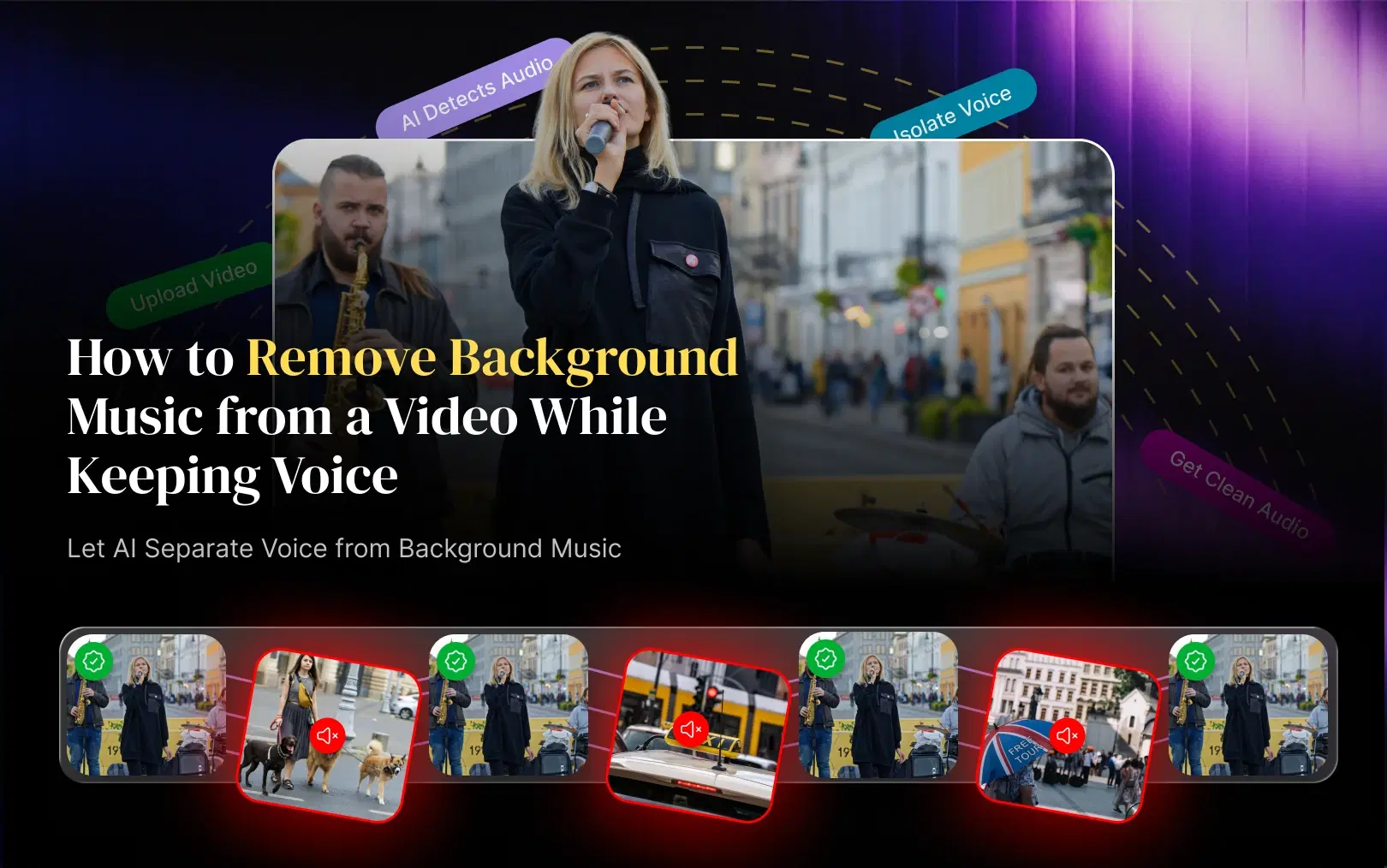
Modern AI video editors can analyze a mixed audio track, identify speech and music, and help remove unwanted background music while preserving the voice. This helps creators repurpose long-form videos into Reels and Shorts, businesses edit marketing content, podcasters clean interviews, and anyone dealing with copyrighted music.
In this guide, we'll explain how to remove background music from a video while keeping the voice, what AI does behind the scenes, when you should replace music instead of removing it, and how VFX AI's RightSafe Music fits into your video editing workflow.
Can You Remove Background Music from a Video and Keep the Voice?
Yes, in many cases. The key is to distinguish between muting audio and separating audio.
If your voice and background music are already mixed together into one audio track, a traditional mute simply turns down the entire track. You lose the dialogue along with the music.
AI-driven audio separation approaches the problem differently. It analyzes the audio signal and attempts to distinguish speech from musical elements. This allows the editor to reduce or remove the music while retaining the spoken content.
This is particularly useful for:
- YouTube shorts
- Instagram Reels
- TikTok videos
- Podcasts
- Interviews
- Webinars
- Online courses
- Tutorials
- Product demos
- Corporate videos
- Sales videos
- Social media ads
The quality depends on the original recording. If the voice is clear and the music is relatively separated from the speech, AI can produce much better results than simply lowering the volume.
Also Read: How to Remove Copyrighted Music from a Video with AI
Why Do People Want to Remove Background Music?
There are several reasons creators and businesses search for "remove background music from video" or "remove music but keep voice."
1. The Music Is Drowning Out the Voice
Sometimes background music is simply mixed too loudly. Even if the track isn't copyrighted, it can compete with the speaker.
For educational videos, tutorials, interviews, and business content, clear dialogue usually matters more than the music.
2. The Music Is Copyrighted
You may have downloaded a song, used music from another video, or added a trending track without realizing that you don't have the necessary rights for your intended use.
Platforms such as YouTube use Content ID to identify matching copyrighted material. YouTube provides options including trimming the claimed segment, replacing a claimed song, or erasing claimed audio in eligible cases.
Removing the problematic music from your edit can therefore be an important part of preparing content for publication.
3. You're Repurposing Existing Content
Imagine turning a 60-minute webinar into:
- 10 YouTube Shorts
- 5 Instagram Reels
- 3 LinkedIn videos
- 2 TikToks
The original video might contain music that was appropriate for the original production but isn't cleared for every new use.
An AI video editing workflow can make it easier to clean the audio before generating multiple versions.
4. You Want to Add New Music
Sometimes you don't actually want a silent video. You want to remove the existing music and replace it with something better. That's where royalty-free, rights-safe music comes in.
How to Remove Background Music While Keeping Voice with AI
The exact workflow varies between tools, but the process generally looks like this.
Step 1: Upload Your Video
Start with the original video containing the voice and background music.
A modern AI video editor can work directly with the video, so you don't have to manually extract the audio first.
Step 2: Identify What You Want to Remove
Before editing, determine what you're actually trying to accomplish.
Do you want to:
- Remove all background music?
- Keep the voice and remove the music?
- Replace copyrighted music?
- Reduce music volume?
- Remove crowd ambiance?
- Add a new background track?
These are different editing tasks, and choosing the right workflow produces better results.
Step 3: Separate or Remove the Music
AI-based audio separation analyzes the mixed recording and tries to distinguish speech from musical components. Instead of treating the entire soundtrack as one block, the AI identifies patterns associated with different audio sources. The result is a cleaner voice track with the unwanted music reduced or removed.
Step 4: Preview the Voice
Always listen to the result before exporting.
Check for:
- Voice clarity
- Missing words
- Metallic artifacts
- Distortion
- Music bleed
- Changes in vocal tone
- Sudden volume changes
AI separation isn't magic. Difficult recordings, especially where vocals and music overlap heavily can still produce artifacts. The cleaner the original recording, the better the potential result.
Step 5: Add New Music if Needed
If your goal isn't silence, add a new track here. Instead of leaving your video without music, choose a royalty-free or rights-safe music track appropriate for your content and intended use.

Remove Music or Replace Music: Which Should You Choose?
This is one of the most important decisions in the workflow.
Choose "Remove Music" When:
- The voice is the main focus.
- You're editing an interview.
- You're creating an educational video.
- You're cleaning up a webinar.
- You're extracting dialogue from a podcast.
- You don't need background music.
- You want a clean voice-only version.
Choose "Replace Music" When:
- You want to maintain the video's energy.
- The original track is copyrighted.
- You're publishing across multiple platforms.
- You want background music underneath dialogue.
- You're creating a Reel, Short, advertisement, or promotional video.
- You want the final video to feel more polished.
This distinction matters because removing music solves an audio problem, while replacing music can solve both an audio and creative problem.
How VFX AI Helps You Remove or Replace Background Music
VFX AI's AI Video Editor combines professional timeline editing with AI-assisted workflows, so creators don't have to move between multiple applications for every part of post-production.
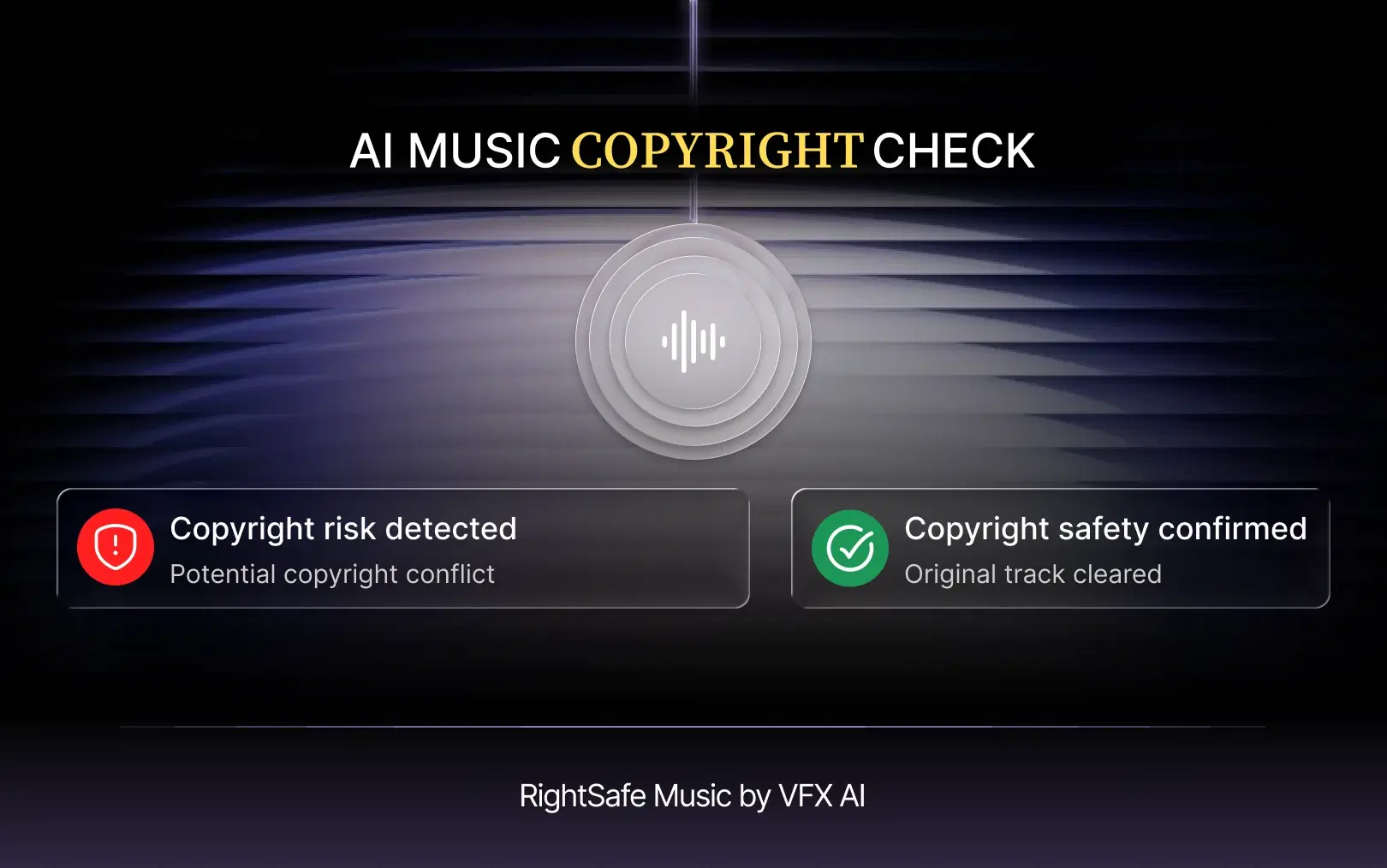
For copyright-sensitive music workflows, VFX AI includes RightSafe Music, built specifically to remove or replace problematic music.
With RightSafe Music, you can choose between Replace Music and Remove Music, depending on what you need.
Replace Music
If you want to keep the video's energy but change the soundtrack, choose Replace Music. You can either:
Auto-Select Music:
Let AI choose a suitable rights-safe track based on your video.
Select Music:
Choose and upload a music track from your own computer or drive.
This gives creators control over whether they want AI to make the selection or prefer to choose their own soundtrack.
Remove Music
If you don't want background music, choose Remove Music. This is useful when your priority is preserving the speaker's voice and creating a cleaner dialogue-focused video.
Depending on the workflow, you can also use options designed to remove unwanted background elements such as crowd ambiance or commentary voice.
Once you've selected your preferred option, VFX AI processes the video and opens it in the RightSafe Editor, where you can review and fine-tune the result.
Check Out: VFX AI RightSafe Music
What Is RightSafe Music?
RightSafe Music is VFX AI's AI-driven workflow for handling potentially problematic background music.
Instead of manually searching through your timeline, extracting audio, finding another song, syncing it, and exporting multiple versions, the workflow brings music replacement and removal into your video editing process.
VFX AI describes RightSafe Music as a way to replace copyrighted background music with copyright-safe alternatives while maintaining the video's mood, pacing, and timing.
That matters especially when you're creating content at scale. For example, a business might have one product video that needs versions for:
YouTube → Instagram → TikTok → LinkedIn → Facebook
A creator might have a long-form interview that needs to become:
Podcast → YouTube video → Shorts → Reels → LinkedIn clips
The more versions you create, the more important a consistent audio workflow becomes.
Also Read: AI Video Automation Workflows
Royalty-Free Music vs Copyright-Safe Music: What's the Difference?
These terms are often used interchangeably, but they aren't necessarily identical.
Royalty-free music generally refers to music you can use under specified licensing terms without paying a royalty each time it is played. It does not automatically mean "free" or "copyright-free."
Copyright-safe or rights-safe music refers more broadly to music intended for use under defined rights or licensing conditions.
Always check the actual license and usage terms for the music you use, especially for:
- Commercial videos
- Paid advertisements
- Client work
- Monetized YouTube channels
- Brand content
- Business communications
- Reposted or syndicated content
In other words, don't assume that a track labeled "free" is automatically safe for every platform or commercial scenario.
Can AI Remove Copyrighted Music Without Removing the Voice?
AI can help separate or remove music while preserving speech, but results depend on the source recording.
If the voice and music were recorded separately, the process is generally easier.
If everything was captured through one microphone and heavily mixed together, the AI has to reconstruct the speech from the combined signal. Some music or vocal artifacts may remain.
That's why it's important to preview the processed audio before publishing.
Also remember that removing music from a video and resolving a copyright claim are related but separate issues. YouTube, for example, has its own Content ID and copyright processes. A successful edit may remove the copyrighted material from your file, but creators should still verify the platform's status and applicable rights.
Why This Matters for Businesses
Music replacement isn't only a creator problem. Businesses increasingly publish video content across multiple channels. Marketing teams create product videos, customer testimonials, social ads, webinars, training videos, sales presentations, and employer-brand content.
A music track acceptable for one project may not suit another use case.
This makes rights-safe video editing especially valuable for businesses that produce high volumes of content.
Instead of treating copyright cleanup as a last-minute emergency, teams can build it into their standard AI video editing workflow.
VFX AI can also fit into broader workflows involving editing, captions, reframing, B-roll, and content repurposing. Its AI Video Editor combines timeline-based editing with automated capabilities designed to speed up repetitive production work.
Also Read: What is an AI Lyric Video Maker?
Best Use Cases for AI Music Removal
The technology is particularly useful for:
Podcasts & Interviews: Keep the host and guest dialogue while removing distracting background music.
Tutorials & Courses: Make narration easier to understand by eliminating an unnecessary music bed.
Instagram Reels & TikTok: Remove an unlicensed soundtrack while keeping your original voiceover.
YouTube Videos: Replace potentially problematic music before you publish or repurpose content.
Business Videos: Clean product demos, presentations, testimonials, webinars, and training content.
Marketing & Ads: Replace unsuitable music with a track appropriate for commercial content and your licensing requirements.
Removing background music while keeping the voice requires specialized audio editing. AI is making that workflow significantly simpler.
Whether you're cleaning up a podcast, removing distracting music from a tutorial, fixing audio before publishing a Reel, or replacing potentially copyrighted music, the right AI video editor can reduce the manual work.
For creators and businesses producing video at scale, the bigger advantage is workflow efficiency.
Instead of:
Edit → Extract Audio → Find Music → Replace → Re-sync → Export → Repeat
you can move toward:
Upload → Remove or Replace → Review → Export.
With VFX AI and RightSafe Music, creators can handle music removal, music replacement, and broader video editing in one workflow while keeping the focus where it belongs: on creating better content.
Explore VFX AI and build a faster, more streamlined AI video editing workflow.