Introduction:
There's a catch, though. Spotify Canvas and lyric videos are separate deliverables with different rules. This guide explains both, shows you how to build a Canvas-ready loop, and covers where AI fits into your release plan.
What Is Spotify Canvas and Why Do Artists Use It?
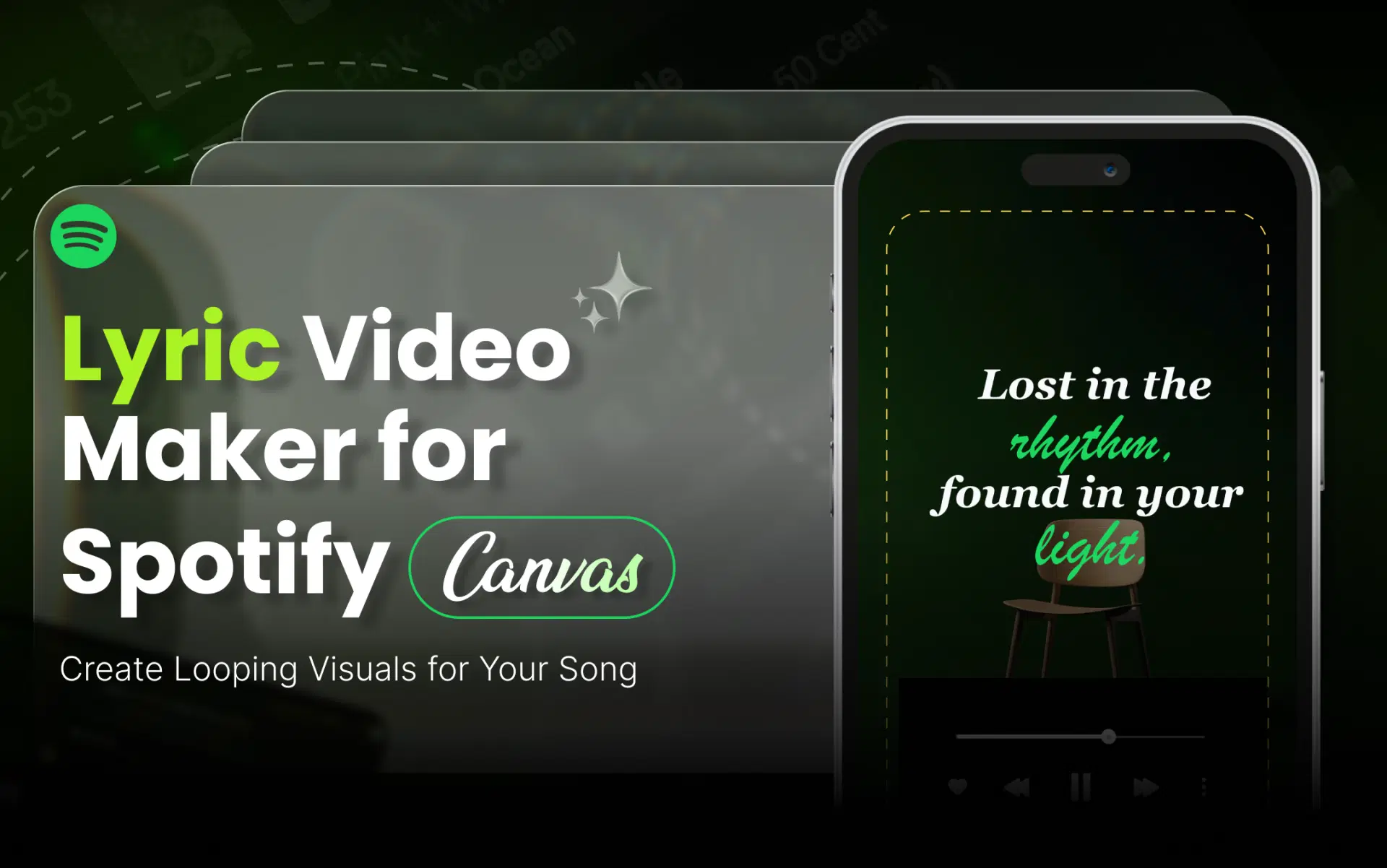
Spotify Canvas is a short looping visual that artists can add to individual tracks. It plays in the Now Playing view of the Spotify mobile app, in place of your album artwork, so it's the first thing a listener sees while your song plays. Spotify itself pitches Canvas as album artwork for the streaming age.
Artists use Canvas to build a visual identity around a release and carry a campaign's look from cover art into the Spotify player. Because a Canvas can be changed at any time, it's also a low-effort way to refresh older catalog.
You add a Canvas in Spotify for Artists, on the web or in the mobile app. According to Spotify's guide to adding a Canvas, it works for any track, including upcoming releases. You'll need Admin or Editor access, and you must be the first main artist on the track (or the main artist on both the track and the release).
If you searched for a "Spotify Canvas lyric video" or a "lyric video for Spotify," the next two sections explain why that format doesn't work the way most people expect.
Spotify Canvas Video Requirements You Should Know
Spotify's official Canvas guidelines are short and specific:
| Requirement | Spotify Canvas spec |
|---|---|
| Duration | 3–8 seconds |
| Aspect ratio | Vertical 9:16 |
| Height | Between 720 px and 1080 px tall |
| File format | MP4 or JPG |
A common export mistake: most vertical videos are exported at 1080×1920. That's 9:16, but at 1920 px tall it's taller than Spotify's stated range. Scale down to a 9:16 frame that's 720–1080 px tall instead, such as 608×1080 or 405×720.
Ready to try it on your next hook? Create a TikTok lyric clip with VFX AI.
Seamless loops: continuous, hard cut, and rebound
Your Canvas repeats for the whole song, so the loop point matters more than almost anything else. Spotify's Canvas tips for artists describe three loop styles:
- Continuous loop: the last frame flows into the first with no visible start or end. It looks best, but it takes planning.
- Hard-cut loop: there's a clear edit point, but it's disguised. For example, the cut lands on a flash of light or a camera whip.
- Rebound loop: the clip plays forward, then reverses back to the start. This is the easiest way for beginners to get a seamless result.
Safe areas and distracting transitions
Spotify warns that the edges of your Canvas may be cut off on some phones and that the player controls cover part of the lower half of the screen. Keep the main subject in the upper-middle of the frame. Avoid rapid cuts and intense flashing too: Spotify's own guidance says these can overwhelm viewers.
Can You Add Lyrics to Spotify Canvas?
Not as synced lyrics. Spotify's guidelines explain that Canvas clips are only 3–8 seconds long, so they won't sync with your lyrics. That's also why Spotify recommends avoiding footage of people talking, singing, or rapping: a mouth out of time with the vocal looks like a bad overdub.
It helps to separate two things:
- Text as a visual element: a single word or symbol that's part of the artwork, like a design detail. It doesn't need to match the vocal.
- Synchronized lyrics: words that appear line by line as they're sung. This is what a lyric video does, and Canvas can't do it.
Even design text should be used sparingly. Spotify already shows the song title and artist name on screen.
If you want fans to read along, make a lyric video for music promotion on YouTube, Reels, TikTok, and Shorts. An AI lyric video maker detects the vocals and syncs the words for you, so you don't have to time each line by hand.
How to Create Looping Music Visuals Using AI
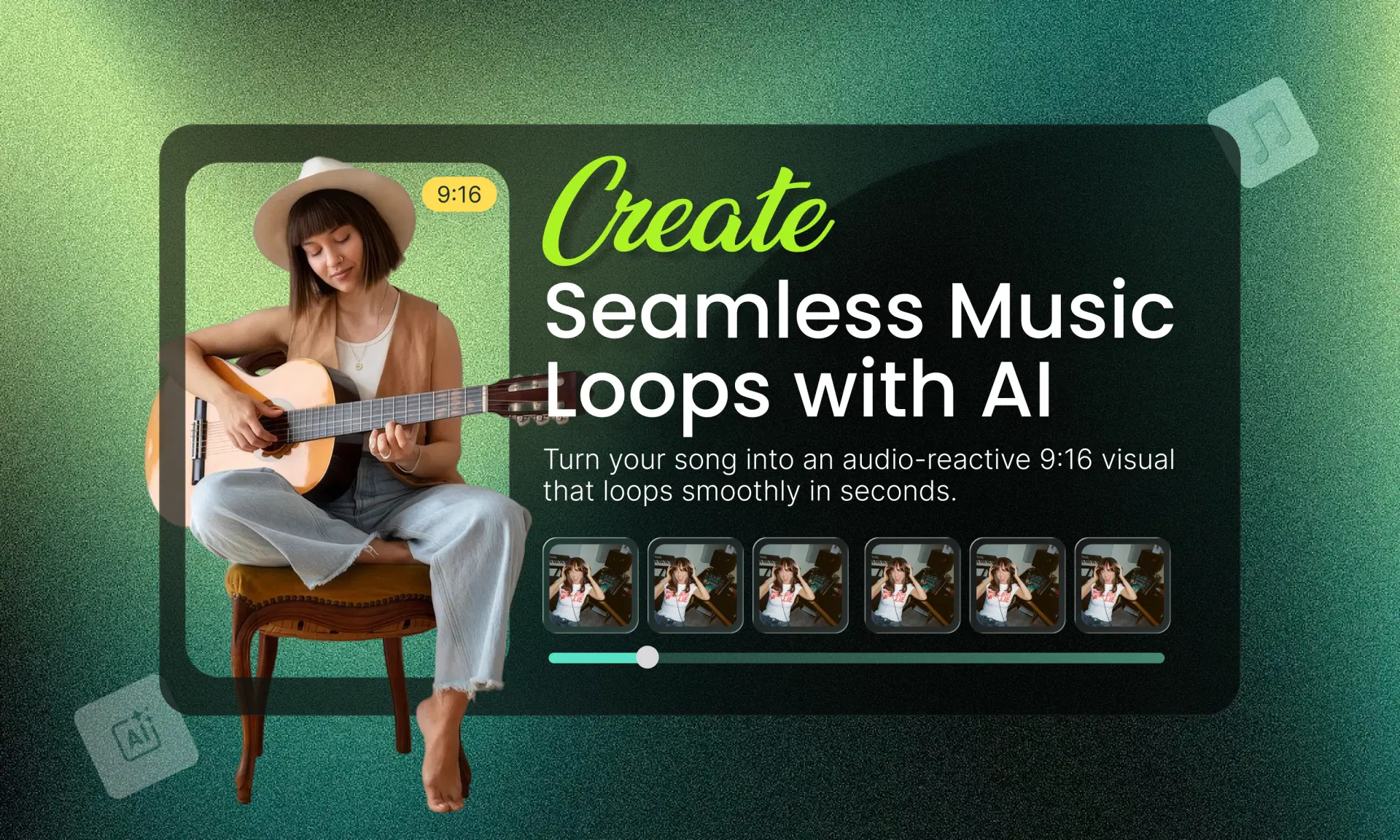
This workflow works whether you start from AI-generated visuals or your own footage:
- Describe the song's mood in three words. For example, "hazy, nocturnal, slow." Every later choice should fit those words.
- Pick one visual concept. Eight seconds is room for one idea, like drifting smoke or rain on glass, but not for a storyline.
- Source or generate the material. Use an AI music video maker that turns your track into an animated music visualizer, your own footage, or motion graphics based on your cover art.
- Compose vertically. Frame for 9:16 from the start, since cropping a widescreen shot often cuts off the subject.
- Keep motion subtle. Slow push-ins and gentle color shifts loop far better than fast camera moves.
- Build the loop. Start with a rebound. For a continuous loop, match the first and last frames in position, brightness, and motion direction.
- Check the seam. Play the clip on repeat ten times. If you can spot the restart, so will listeners.
- Export to spec. Use an MP4 that's 3–8 seconds long, 9:16, and 720–1080 px tall, then upload it in Spotify for Artists.
Tip: sections of a music video or visualizer where the camera barely moves loop much more cleanly than action-heavy moments.
How to Create AI Lyric Videos for Your Music
Your Canvas covers the Spotify player. A synced lyric video with animated text covers everywhere else, and it follows its own workflow:
- Add your music. VFX AI's AI Lyric Video Maker starts from a supported music or video link, such as a YouTube link.
- Detect vocals and sync lyrics. The AI finds the vocal and times each line to it.
- Style the text. Match the type animation to the track, so a ballad moves more gently than a club record.
- Choose backgrounds, format, and lyric position. Use 16:9 for YouTube, or 9:16 for Reels, TikTok, and Shorts.
- Review and export. Check the timing line by line before you publish.
For a detailed walkthrough of each setting, read our guide on how to make a lyric video with AI.
Keep the formats separate. A synced lyric video can't be uploaded as a Canvas. Even a 9:16 lyric video runs for the whole song and depends on timing that Canvas doesn't support.
Why Use VFX AI as Your Lyric Video Maker for Spotify Canvas and Beyond?
VFX AI doesn't have a dedicated Canvas export button. As a lyric video maker for musicians, it instead covers both halves of a release, the looping visuals and the synced lyric content:
- Lyric sync with vocal modes: use Lead Vocals for the main vocal line, or Full Lyrics to capture harmonies and backing vocals.
- AI animated lyrics and captions: you control the fonts, colors, animation, and text layout.
- Auto or Manual visuals: let the AI match the song's mood, or steer the look to fit your existing artwork.
- Audio-reactive visuals: the Music Video Maker maps drums, bass, and vocals to motion and effects, and it can add synced lyric or caption overlays. That makes it an AI music video generator with lyrics, and good raw material for a Canvas loop.
- Editing control: the AI Video Editor lets you trim a section to 3–8 seconds, switch between 9:16, 16:9, 1:1, and 4:5, and polish anything the AI generated.
In practice, one song can produce several assets: a full lyric video for YouTube, hook clips for Reels and TikTok, and a short loop trimmed to Canvas specs. Before you upload a loop to Spotify, check its length, ratio, and pixel height.
Tips to Make Your Spotify Canvas More Engaging
- Match the genre and mood: grainy film suits lo-fi, and sharp neon suits synth-pop.
- Use subtle animation: slow movement holds up better on repeat.
- Hide the seam: a visible restart every eight seconds gets distracting.
- Skip flashing and rapid cuts.
- Stay consistent with your artwork: Spotify suggests tying Canvas to your cover, profile, and header images.
- Skip unnecessary text.
- Commit to one strong visual: a single clear image beats a montage.
- Test on a real phone: check how the player controls affect your framing.
Spotify Canvas vs. Traditional Lyric Videos: What's the Difference?
| Spotify Canvas | Traditional lyric video | |
|---|---|---|
| Duration | 3-8 seconds, looping | Usually the full song |
| Primary purpose | Set the mood while the song plays | Help fans follow and share the words |
| Visual format | Vertical 9:16, 720-1080 px tall, MP4 or JPG | 16:9, 9:16, or 1:1, depending on the platform |
| Lyric sync | Not supported | Core feature |
| Best use case | Visual identity inside Spotify | Promotion, discovery, and sing-alongs |
| Where it appears | Now Playing view in the Spotify mobile app | YouTube, Shorts, Reels, TikTok, Facebook |
Spotify Canvas sets the mood inside the Spotify player. A lyric video puts every line on screen for fans on YouTube, Reels, and TikTok. Most releases benefit from both.
If you've been looking for a lyric video maker for Spotify Canvas, the practical answer is a workflow rather than a single export. Use VFX AI's Music Video Maker to create audio-reactive visuals you can trim into a Canvas loop. Use the AI Lyric Video Maker to generate synced, animated lyric videos for every other platform. If you're comparing options, our roundup of the best AI lyric video makers in 2026 shows how the tools stack up.
Ready to build visuals for your next release? Request access to VFX AI and turn one song into a full set of release content.