Introduction:
This guide shows you how to edit videos faster using AI without handing your channel to a machine. You'll see which tasks AI can automate, which it can only assist with, and a six-step workflow you can reuse on every video.
Why Does Video Editing Take So Much Time?
Editing is slow because most of it is review. A one-hour podcast means an hour of listening before your first real cut.
After that come the small, repeated jobs. You trim false starts and long pauses. You type or correct captions line by line. You resize the video for vertical feeds and re-center the speaker by hand. Then you export, watch the file back, catch a typo, and export again.
None of these tasks is hard. They repeat on every video, which is exactly what video-editing automation handles well.
How Can You Edit Videos Faster Using AI?
To edit videos faster using AI, hand the repetitive steps to AI tools: transcribing speech, removing pauses and filler words, generating captions, finding highlight clips, and resizing for each platform. Then review and refine the result yourself. The time savings come from automating mechanical tasks, not from skipping creative choices or quality checks.
Some AI features automate a task and produce a first pass for you to check. Others assist, suggesting options while you decide. Not every AI video editor offers every feature below.
Also Read: How We Converted a 90-Minute Video into 8-10 Shorts Instantly
Automate Repetitive Editing Tasks
With transcript-based editing, the software transcribes your footage and you cut video by deleting text. Many editors also flag silences and filler words for bulk removal. Adobe, for example, documents how to detect and delete pauses in Premiere transcripts.
This is true automation, but review the result. Some pauses are deliberate, and a bulk delete can't tell a dramatic beat from dead air.
Generate Captions and Subtitles Faster
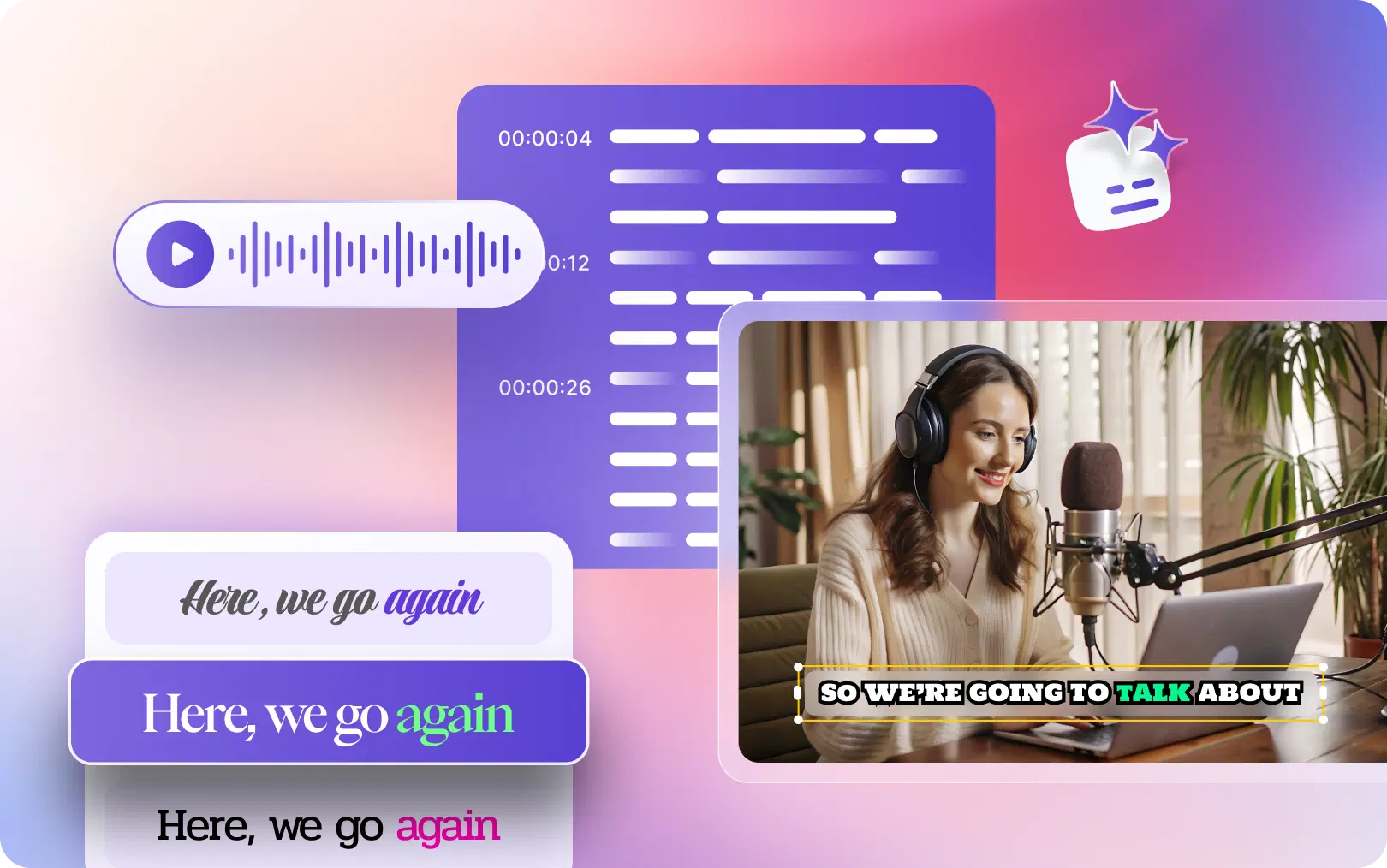
Speech recognition turns audio into timed captions quickly. Even YouTube, which uses it for its automatic captions, encourages creators to review them for errors. Treat AI captions as a draft to proofread. Note that the W3C explains that captions transcribe the same language as the audio, while subtitles translate it. For a walkthrough, see our guide on adding subtitles to a video automatically.
Repurpose Long Videos Into Short Clips
Highlight detection scans a long recording and suggests moments that could stand alone. This is assistance, not automation: AI surfaces candidates, but you know which moment fits your audience.
YouTube treats square or vertical uploads up to three minutes as Shorts, so set clip lengths with your target platform in mind.
Resize and Reframe Videos for Different Platforms
AI video reframing tracks the speaker when you convert 16:9 footage to 9:16, 1:1, or 4:5. It's automated, but check each version: on-screen text and second speakers are easy to crop out.
Improve Your Editing Workflow With AI-Assisted Tools
Some tools take edit requests in plain language, clean up noise, or suggest B-roll. They speed up decisions, but you still make them.
A Step-by-Step AI Video Editing Workflow
This AI video editing workflow works for beginners and teams, across YouTube videos, podcasts, webinars, and marketing videos.
- Define the video's goal and target platform. A 12-minute YouTube tutorial and a 45-second Reel need different cuts. Deciding first prevents rework later.
- Upload and organize the footage. Keep footage, logos, and music in one clearly named place. Clean inputs speed up both the AI and you.
- Use AI tools to accelerate repetitive tasks. Generate the transcript, remove pauses and filler words, add captions, and pull clip candidates. This is where most of the time savings happen.
- Review cuts, captions, and framing. Watch the AI's work at normal speed for clipped words, caption errors, and subjects cropped out of frame. Human review matters most here.
- Refine pacing, audio, and visual quality. Tighten the opening, balance audio, and add B-roll where attention dips. These calls are still yours.
- Export and check the final video. Export each platform's aspect ratio, then watch every file once. A quick check is cheaper than a re-upload.
Also Read: The Secret to Scroll-Stopping Social Media Videos
How VFX AI Can Help You Edit Videos Faster
VFX AI brings several of these steps into one cloud-based platform. Picture a social media manager with a 45-minute webinar who needs a clean YouTube cut and five vertical clips for Reels and Shorts.
In VFX AI's AI Video Editor, they can edit from the transcript, removing filler words, pauses, or sentences as the timeline updates, while still keeping a full manual timeline for precise trims. For the clips, Clip Maker accepts an upload or a YouTube link, suggests highlight moments, applies captions, and exports in 9:16, 16:9, 1:1, or 4:5 at lengths from 30 seconds up to three minutes and beyond.
The AI caption generator syncs captions to speech and lets you style fonts, colors, and placement, while Smart Reframe uses subject tracking and speaker detection to keep the presenter in frame across aspect ratios.
The manager's job shifts from building every edit to reviewing it.
AI Video Editing vs. Traditional Video Editing
| Factor | AI-assisted editing | Traditional editing |
|---|---|---|
| Repetitive task handling | Automates transcripts, pause removal, and resizing | Done by hand, clip by clip |
| Captions and subtitles | Generated from speech, then proofread | Typed or timed manually |
| Editing speed | Faster on routine, speech-heavy content | Slower, but predictable |
| Creative control | Strong first draft; fine control varies by tool | Full frame-level control |
| Accuracy and quality checks | Needs human review of every AI pass | Accuracy depends on the editor |
| Best use cases | Podcasts, webinars, talking heads, repurposing | Narrative films, complex effects, ads |
They work best together: AI for the mechanical first pass, traditional skills for pacing and polish.
Tips to Make AI Video Editing Even Faster
Prepare before you edit. Gather footage, logos, and music first, so you aren't hunting mid-edit.
Reuse templates and brand settings. Save caption styles, fonts, and intro or outro cards once, then apply them everywhere.
Choose tools for your bottleneck. If captions take the longest, start there.
Create platform-specific export presets. A saved preset for each platform removes a repeated decision from every video.
Always review AI output. A quick review is the price of speed.
Keep a repeatable workflow. For recurring formats like weekly podcasts, write the steps down and reuse them.
To save editing time with AI, automate what repeats: transcripts, pauses, captions, clip selection, and resizing. Save your attention for pacing, story, and the final check. Pick tools that fix your specific bottleneck, and review every output before it goes live. If you want transcript editing, captions, clipping, and reframing in one place, explore VFX AI and test it on your next video.