Introduction:
An AI clip generator is software that analyses a long video, mainly its speech, transcript, and scene changes, and suggests short, self-contained clips from it. Most tools also reframe those clips for vertical screens and add captions, so you can review them and publish to YouTube Shorts, Instagram Reels, or TikTok.
Here's how these tools work, where they fall short, and how to use one step by step.
What Is an AI Clip Generator?
An AI clip generator is a video tool that finds the strongest moments in long-form footage and turns them into short clips. You give it a podcast episode, webinar, or YouTube video. It returns suggested clips, each with a start point, an end point, and usually captions and a vertical crop.
The big difference from manual trimming is who does the searching. In a traditional editor, you find every cut point yourself. Here, the software proposes them and you decide which to keep.
Picture a 60-minute YouTube interview. Instead of rewatching it all, the AI transcribes it and flags segments where a complete idea is expressed.
One clarification: an AI clip generator works with footage you already have. That's different from generative AI video tools, which create brand-new footage from a text prompt. The terms often get mixed up online.
Also Read: AI Clip Generation: How AI Identifies Viral Moments in Your Videos
How Does an AI Clip Generator Work?
Most tools follow the same basic process, though capabilities vary by product.
- Upload or import your video. Upload a file or paste a link, such as a YouTube URL.
- The AI analyzes the content. It usually transcribes the speech and looks at signals like topic changes, pauses, speaker turns, and scene changes.
- It identifies potential highlights. Segments with a complete thought, strong statement, or useful tip get ranked as candidates.
- It generates suggested clips. Each candidate becomes a clip, often matched to a length you choose.
- You review and refine. Trim, fix captions, adjust the vertical (9:16) framing, and discard weak clips.
- You export. Final clips render in the format each platform needs.
So how does AI know which part of a video to clip? Mostly through the transcript. Speech is the clearest signal of where an idea starts and ends, which is why podcasts, interviews, and webinars work best. A silent b-roll montage gives the AI far less to work with.
That's why human review matters. AI recognizes structure, but not always meaning, sarcasm, or missing context.
What Are the Benefits of Using an AI Clip Generator?
- Less repetitive editing. The slowest part of clipping is searching for moments. Handing off that first pass leaves more time for creative decisions.
- More value from existing content. One recording can feed several short posts instead of being published once and forgotten.
- Easier multi-platform publishing. Reframing and captioning help one clip work on several platforms.
- No editing background required. Beginners can produce usable clips without learning a timeline editor first. New to editing? Start with how to edit a video for the first time using AI.
- A steadier publishing rhythm. When clipping a long video takes less effort, it's easier to stick to a regular posting schedule.
How to Create Short Video Clips Using VFX AI
VFX AI is an AI-driven video editing platform that helps creators and teams turn long-form video into platform-ready content. Its Clip Maker is built specifically for turning long videos into short clips. Based on its product page, the workflow looks like this:
- Import your video. Paste a YouTube or public link, or upload a file.
- Pick a clip length. Options include 30–59 seconds, 60–89 seconds, and 90 seconds to 3 minutes.
- Let the AI find highlights. It looks for key insights, funny lines, and emotional beats.
- Review the selections. Keep only clips that stand on their own.
- Set framing and captions. Choose 9:16, 16:9, 1:1, or 4:5 with Fill, Fit, or Split layouts, then apply a caption style.
- Export. Download versions for YouTube Shorts, Instagram Reels, TikTok, or Facebook Reels.
Clip Maker is one part of a wider toolkit. Smart Reframe resizes full-length videos without clipping them, and the AI Video Editor handles broader edits.
Illustrative example: repurposing a 30-minute podcast
Two hosts upload a 30-minute episode about remote work, and the AI returns a set of candidate clips. They keep three: a friendly debate about four-day weeks, a quick focus tip, and a funny video-call story. Two suggestions start mid-sentence, so they pull the start points back. A misspelled company name in the captions gets fixed, and the debate clip uses a Split 2 layout so both hosts stay on screen. A person checks every clip before it's scheduled.
Explore VFX AI's Clip Maker to see how AI-assisted clipping can fit into your video editing workflow. If Shorts are your main goal, our guide on how to turn a long video into YouTube Shorts goes deeper.
What Makes a Good Short-Form Clip?
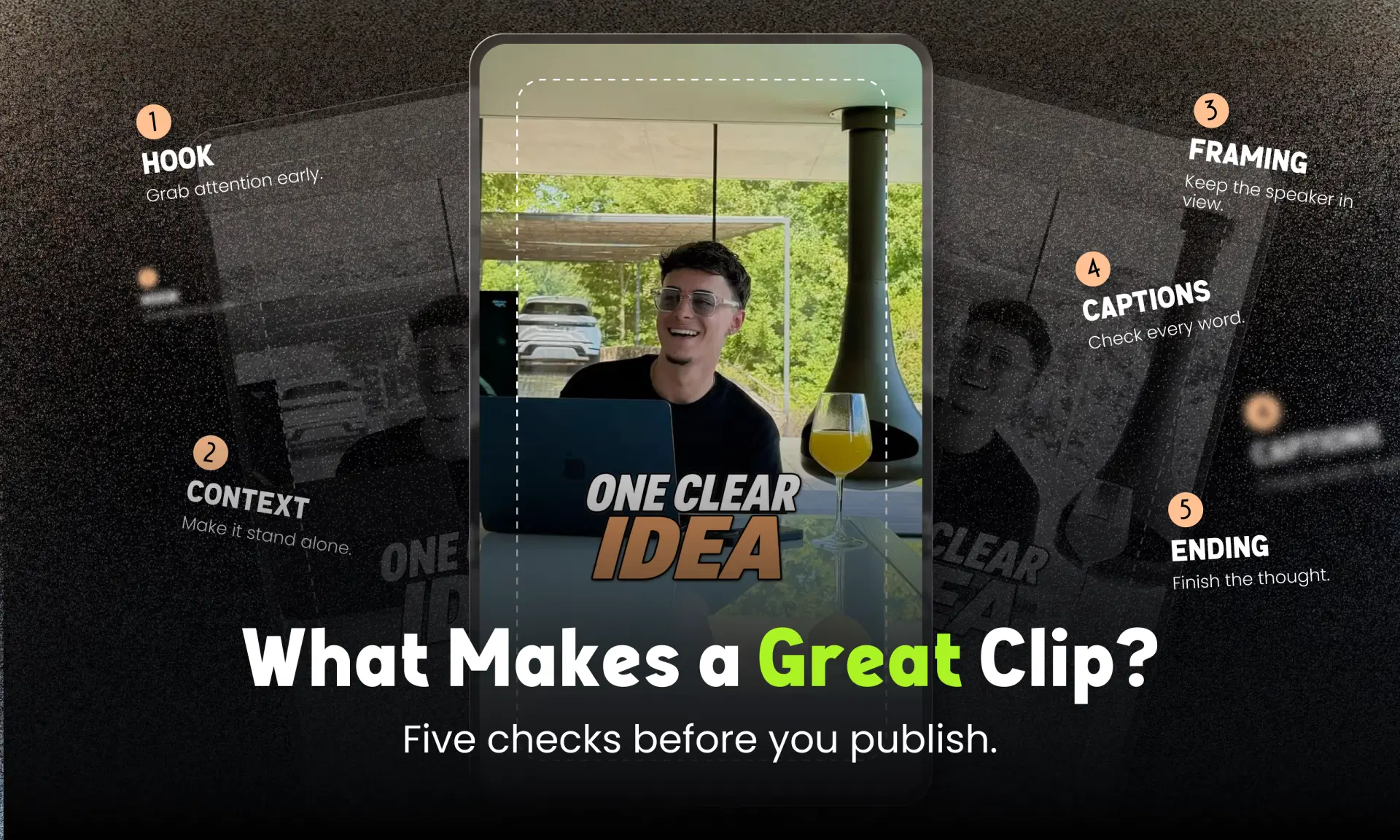
Before publishing any AI-suggested clip, check five things:
- Opening hook. Do the first two seconds give viewers a reason to stay?
- Context. Would someone who never saw the full video understand it?
- Captions. Check names, brand terms, and numbers. YouTube's own help page on automatic captioning warns that machine captions can misrepresent speech because of accents, mispronunciations, or background noise.
- Framing. After the vertical crop, is the speaker fully in frame?
- Ending. Does the clip finish on a complete thought?
Where Can You Use AI-Generated Video Clips?
- YouTube Shorts. According to YouTube Help, square or vertical videos up to three minutes long are categorized as Shorts.
- Instagram Reels. Instagram's Reels size guide lists supported aspect ratios between 1.91:1 and 9:16.
- TikTok. Vertical, captioned clips with a quick hook.
- Podcast highlights. Short clips that point listeners back to the full episode.
- Webinar highlights. One takeaway per clip, ideal for LinkedIn posts or follow-up emails.
- Marketing and education. Product demo moments, customer interview quotes, and lesson snippets.
Platforms reward different choices. A YouTube Short can carry a longer explanation, while TikTok usually needs a faster opening. Many people scroll where they can't play sound, so readable captions help everywhere. Treat the AI's first export as a draft and adjust pacing, framing, and caption style per platform.
AI Clip Generator vs. Traditional Video Editing: What's the Difference?
| AI clip generator | Traditional video editing | |
|---|---|---|
| Clip selection | AI suggests moments from transcript and visual cues | You find every moment yourself |
| Editing workflow | Review and refine suggestions | Build each clip on a timeline |
| Manual control | Limited to the tool's controls | Full control over every frame |
| Setup and learning | Minimal | Steeper learning curve |
| Best use cases | Repurposing talk-based content at volume | Story-driven edits, ads, complex visuals |
| Limitations | Can miss context or tone; captions need proofreading | Slow for high-volume clipping |
Many creators use both: AI for the first pass, a traditional editor for clips that need extra polish.
See where clipping fits in the complete AI video editing workflow.
How Do You Choose the Best AI Clip Generator?
Test these with your own footage, not a demo video:
- Highlight quality. Would you actually post the suggested clips?
- Editing controls. Can you adjust start and end points, or re-trim a clip?
- Caption accuracy and styling. How many corrections does a typical clip need?
- Reframing options. Which aspect ratios, speaker tracking, and split layouts are available?
- Export requirements. Resolution, formats, and watermarks.
- Pricing and free-plan limits. Free tiers often cap uploads or export quality.
- Ease of use. Can a beginner get a usable clip on day one?
- Privacy and content rights. How are uploads stored, and do you own the rights to the footage and music?
The simplest test: run the same 20-minute video through two or three tools and compare.
An AI clip generator takes over the slowest part of short-form editing: searching long recordings for usable moments. It suggests clips, crops them for vertical screens, and adds captions, making podcasts, webinars, and YouTube videos easier to repurpose. It doesn't replace your judgment, though. Check every clip's hook, context, captions, framing, and ending before you publish.
If you'd like to try this on your own footage, VFX AI brings clipping, reframing, and captioning together in one web-based platform. Start with a single recording and see which clips you'd actually post.