Introduction
The good news? AI video editing has changed everything. You can now edit your first video in minutes; no experience, no expensive software, no film school required. This guide walks you through exactly how to edit a video for the first time using AI, step by step. Whether you're creating YouTube videos, Instagram Reels, TikTok clips, or content for your business, this is everything you need to get started.
Why Video Editing Feels So Difficult For Beginners
Let's be honest about what makes traditional video editing so overwhelming.
The timeline is confusing. Professional editors like Adobe Premiere Pro and DaVinci Resolve use multi-track timelines that look like air traffic control dashboards. Understanding how to layer video, audio, and text takes weeks of practice before anything starts to click.
There are too many settings. Frame rates, bitrates, codecs, resolution, color profiles- these terms mean nothing to a first-time editor. One wrong export setting and your video looks blurry or won't upload properly.
Cutting clips is tedious. Manually scrubbing through footage, finding the right moment to cut, removing filler words and awkward silences, this process can take three to four hours for a ten-minute video.
Captions feel like a separate job. Adding subtitles manually means watching your video, typing every word, and timing each line to sync with your speech. Most beginners skip this entirely, which costs them reach and accessibility.
Good editing requires multiple tools. Traditional workflows often involve a video editor, a separate audio tool, a caption tool, and a resizing tool for different platforms. Juggling all of these as a beginner is exhausting.
This is why so many creators give up early. The barrier to entry in traditional editing is genuinely high and that's a problem AI is now solving effectively.
Can AI Really Edit Videos Automatically?
Yes, and it's more capable than most people realize. But it helps to understand what AI actually does so you have realistic expectations.
Here's what modern AI video editors can do automatically:
- Remove silences and pauses: AI detects gaps in speech and trims them instantly, dramatically reducing editing time.
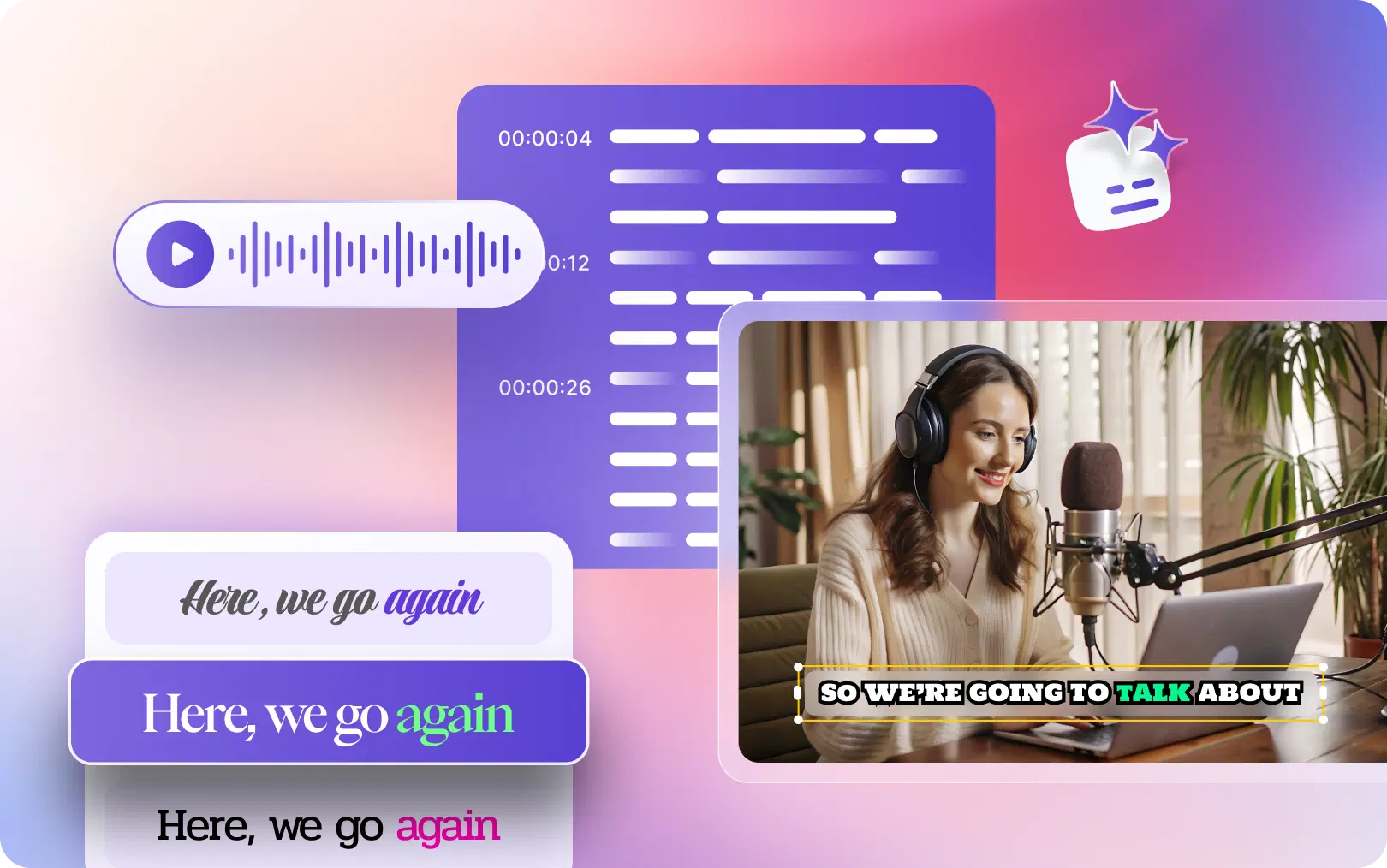
- Generate accurate captions: AI transcribes your speech and adds synchronized subtitles in seconds. These are sometimes called AI subtitles or auto captions.
- Highlight the best moments: AI scans your footage for the most engaging clips and surfaces them as highlights. This is especially useful for long recordings, such as podcasts or interviews.
- Suggest and insert B-roll: Some AI tools can suggest relevant footage to place over your talking-head clips.
- Remove filler words: "Um," "uh," and "like" can be automatically detected and cut.
- Reframe for different platforms: AI can resize and reframe your video from landscape to vertical for Reels, Shorts, and TikTok with smart subject detection.
- Generate short clips from long videos: AI identifies the most quotable or interesting moments from a long video and turns them into shareable clips. This is often called long-form-to-shorts or AI content repurposing.
What AI doesn't replace is your creative judgment. You still decide what your video is about, how you want it to feel, and what story you're telling. AI handles the mechanical, time-consuming parts so you can focus on what matters.
Step-by-Step: How to Edit Your First Video Using AI
Here's a complete beginner workflow using an AI video editor. Follow these steps, and you'll have a polished, publish-ready video faster than you think.
Step 1: Plan Your Video Before You Shoot
The best editing starts before you press record. Decide:
- What is the one main point of your video?
- Who is watching it?
- How long should it be? (For Reels and Shorts: 30–60 seconds. For YouTube: whatever length the content deserves.)
A rough outline, even just three bullet points, saves a lot of editing time. Less rambling in the footage means less cleanup later.
Speaking from a loose structure (not a word-for-word script) sounds more natural and gives AI fewer filler words to remove.
Also Read: Trending Caption Styles for 2026
Step 2: Upload Your Footage
Once your video is recorded, upload it to your AI video editor. Most modern AI tools like VFX AI are cloud-based, meaning you don't need to download heavy software or worry about storage on your laptop. Just drag and drop your file.
AI editors accept most common formats: MP4, MOV, MKV, so don't worry about converting anything first.
Step 3: Generate a Transcript
This is where AI editing gets powerful. Your AI editor will automatically transcribe everything you said in the video. This transcript becomes the foundation of your edit.
Text-based editing means you can edit your video the same way you'd edit a document by reading and deleting sentences rather than scrubbing through a timeline.
Check the transcript for accuracy, especially for names, technical terms, or industry jargon. AI transcription is highly accurate but not perfect.
Step 4: Trim Mistakes and Cut Weak Sections
Read through your transcript and highlight anything you want to remove: rambling, repeated explanations, off-topic tangents. Delete those text sections and the corresponding video automatically disappears.
This approach is dramatically faster than cutting clips manually on a timeline. What used to take two hours takes fifteen minutes.
Step 5: Remove Silences and Filler Words
Use the AI silence removal feature to automatically detect and cut awkward pauses. This alone makes your video feel more polished and professional.
If your AI editor supports filler word removal, use it to eliminate "um," "uh," "so," and "you know" from your speech. Your video will sound cleaner without you having to manually hunt for every instance.
Step 6: Add Captions and Subtitles
Add AI-generated captions to your video. This step is non-negotiable in 2026. Research consistently shows that a significant majority of social media videos are watched without sound, making subtitles essential for reach and engagement.
AI subtitle generation is fast and accurate. You can customize the font, size, color, and position of your captions to match your brand style.
Keep caption lines short, two to five words per line is ideal. Long lines are harder to read, especially on mobile screens.
Step 7: Add Transitions and B-Roll
Once your main cuts are done, smooth out the edit with simple transitions between scenes. For most beginner videos, a clean cut or a basic fade is all you need. Avoid over-using flashy transitions; they enhance your content and distract from the message.
If your AI editor suggests B-roll or stock footage, consider adding it over sections where you're explaining something. Visual variety keeps viewers watching.
Less is more with transitions. One consistent style throughout your video looks more professional than mixing five different effects.
Step 8: Add Music
Background music adds energy and professionalism to almost any video. Choose a track that fits the mood without overpowering your voice. Most AI video editors include built-in royalty-free music libraries.
Set the music volume low, typically 10–20% of your voice volume, so it enhances rather than competes with what you're saying.
Avoid copyrighted music unless you have a license. Platforms like YouTube will mute or flag videos that use protected tracks.
Step 9: Resize for Your Platform
This is a step that beginners often miss. Different platforms require different video dimensions:
- YouTube: 16:9 landscape (1920×1080)
- Instagram Reels / TikTok / YouTube Shorts: 9:16 vertical (1080×1920)
- LinkedIn / Facebook: Square (1:1) or landscape
AI editors with smart reframing can automatically reformat your video for each platform, keeping your face or main subject centered in the frame.
If you're posting on multiple platforms, export separate versions optimized for each one rather than uploading the same file everywhere.
Step 10: Export and Publish
Choose your export settings; most AI editors default to 1080p MP4, which is the right choice for almost every platform. Click export and your video is ready.
Also Read: Best AI Video Editor for YouTube in 2026
Common Mistakes Beginners Make (And How to Avoid Them)
Even with AI doing the heavy lifting, some habits hurt your videos. Here are the most common beginner mistakes:
Editing too much. Cutting every breath and micro-pause makes speech sound robotic. Leave natural rhythm in your delivery.
Bad audio. Viewers will forgive average video quality but rarely forgive poor audio. Record in a quiet space, as close to your microphone as possible.
Wrong aspect ratio. Uploading a horizontal video to Instagram Reels wastes the full screen. Always format for the platform.
Skipping subtitles. Without captions, you're losing a substantial portion of potential viewers who watch on mute. AI subtitles take ten seconds to generate; there's no excuse to skip them.
Starting with a long intro. If your video doesn't hook viewers in the first three seconds, they leave. Start with the most interesting or valuable thing you have to say.
Exporting at low quality. Never export below 1080p for any modern platform. Low-quality video feels untrustworthy and gets deprioritized by algorithms.
Ignoring Shorts and Reels. A single long video can produce five to ten short clips. If you're not repurposing, you're leaving reach on the table.
Traditional Editing vs. AI Editing: A Quick Comparison
| Feature | Traditional Editing | AI Video Editing |
|---|---|---|
| Learning curve | Steep (weeks to months) | Minimal (hours to days) |
| Time per video | 3–8 hours | 15–45 minutes |
| Software cost | $50–$600/year | Free to low-cost options |
| Silence removal | Manual | Automatic |
| Captions | Manual or third-party | Built-in AI subtitles |
| Clip generation | Manual | AI highlights and clips |
| Platform resizing | Manual, multi-step | One-click reframing |
| Filler word removal | Manual | Automatic |
| Ease of use | Difficult for beginners | Beginner-friendly |
| Repurposing content | Requires extra effort | Automated Shorts/Reels |
For most content creators, coaches, YouTubers, and small business owners, AI editing is the clear choice, especially when starting out.
Why VFX AI Makes First-Time Editing Easy
VFX AI is built specifically for creators who want professional results without a professional learning curve. Here's what makes it a strong choice for beginners:
AI-driven trimming and silence removal. Upload your footage and VFX AI automatically detects and removes pauses, filler words, and mistakes, turning a rough recording into a clean draft in minutes.
Automatic captions. Generate accurate AI subtitles in seconds. Customize the style to match your brand, and you're done. No manual timing, no typing.
Long-form to Shorts. Got a 1-hour podcast or talking-head video? VFX AI identifies the most engaging moments and turns them into short clips ready for Reels, TikTok, and YouTube Shorts. This is AI content repurposing done right.
Smart reframing. Resize any video for any platform with AI, keeping your subject centered automatically. One video, every platform.
Beginner-friendly interface. The editing workflow is built around your transcript, not a complex timeline. If you can read and delete text, you can edit a video in VFX AI.
Cloud-based editing. No downloads, no storage issues, no compatibility problems. Open a browser and start editing.
Fast exports. Export in high quality without waiting hours for renders.
VFX AI won't make creative decisions for you, but it removes every mechanical obstacle that would otherwise stop a beginner from publishing their first video.
Tips to Make Your First Video Look Professional
Even AI editing can't compensate for bad fundamentals. Get these right, and your video will stand out:
Get good lighting. Natural light from a window is free and flattering. If you're filming indoors, position a lamp or ring light in front of you, not behind.
Prioritize clean audio. A $20 clip-on microphone beats built-in laptop audio every time. Good audio is the single biggest upgrade for any beginner.
Keep cuts short. Shorter, tighter clips hold attention better. Cut whenever the energy drops.
Hook early. Your first three seconds determine whether someone watches or scrolls. Open with a question, a bold statement, or the most interesting thing you're about to share.
Use captions. We've said it before, and we'll say it again: captions increase reach, accessibility, and watch time.
Use music carefully. Background tracks should be felt, not heard. Keep the volume subtle.
Stay consistent. Use the same caption style, color palette, and visual style across your videos. Consistency builds brand recognition faster than any single viral moment.
Keep it short. Especially for your first videos. A tight, valuable three-minute video will outperform a rambling ten-minute one every time.
Editing your first video doesn't have to take a week of frustration and a steep learning curve. AI has fundamentally changed what's possible for beginners, students, creators, and small business owners who simply want to share their ideas with the world.
The workflow is simple: plan your video, upload your footage, let AI handle the transcription and cleanup, add captions, resize for your platform, and export. That's it.
The barrier that once separated amateur from professional video content was largely a technical one, and AI has knocked it down.
If you're ready to edit your first video today, VFX AI is one of the most beginner-friendly AI video editors available. Upload your footage, let the AI do the heavy lifting, and publish something you're proud of without spending hours learning software you'll barely use. Your first video is closer than you think. Start today.